License Management FAQ
What shall I do with license key/file?
You need to set up the license key or license file you receive, because every Chemaxon product run only, if a valid license is correctly set up. See details here
How do I install license files?
There are multiple possibilities for setting up license file, detailed here
What is Chemaxon License Manager?
It is a simple application installed along with many desktop Chemaxon applications like Marvin Sketch or JChem Base. With that, you can manage the licenses of all Chemaxon products.
Where can I find, how can I use Chemaxon License Manager?
Some Chemaxon applications include License Manager as part of their installation. You can access it through the "Help" menu in these products. Example in MarvinSketch:
You can also use the scripts/license command-line tool if you have JChem Base installed.
If this is your first time opening License Manager and you're using MarvinSketch, it is installed automatically with the application, so you can open it directly as well:
You can find License Manager among your installed programs (for example, on Windows: Start menu → Programs → Chemaxon) or by searching directly for "License Manager" on your computer.
Also, if you open MarvinSketch directly without setting up your license key first, you can open the License Manager by clicking "Install licenses…" in the window that appears.
If you're using JChem for Office, you can open License Manager directly from Excel, for example:
For detailed instructions on installing your license, please refer to our documentation page.
Will I have separate license files for each product I bought?
No, license files usually contain licenses to several products.
Can I have more than one license file?
Yes, you may have more license files. In such case, you need to copy these licenses into CHEMAXON_HOME directory license folder
If I have a license key, will a license file be generated as well through the license installation process?
When you set up license key, no license file (license.cxl) will be present in your chemaxon home folder. Instead, a temporary license file may appear in your CHEMAXON_HOME directory that contain license related information and enables temporary offline usage.
Do I have to install the license files in each product I have a license to?
No, license files should be set up only once.
What happens when I install a license file?
Chemaxon License Manager copies the license file to a location where all products can find it. This location is .chemaxon/license.cxl (Unix) or chemaxon\license.cxl (Windows) under the user's home directory.
You can copy your license file to this location if you wish to install it manually.
What do license files contain?
License files contain several licenses for each product. A license contains all relevant information from your license agreement, such as product name, licensee, expiration date, usage restrictions, etc. All licenses are cryptographically protected from modification.
What is the difference between 'Annual' and 'Perpetual' license?
Annual Licenses offer all functionalities, including product upgrades and support for 1 year. Perpetual License is a legacy, commercial license, with 1 year upgrade and support. Perpetual licenses are not sold anymore, only are renewed for extended support.
Can I use a key and file at the same time?
Yes. A runtime may use license key and multiple license files at the same time.
How can I check if we still have available seats?
Currently, Chemaxon doesn't provide real-time dashboard, for the actively used seat counts for a given license key. However, this data is accessible, and report can be made based on historical data. This means, we can tell on-demand, how many users have been using the same key, for a given time period (e.g. in a month). It is the customer's responsibility to control which users may access Chemaxon software and how many may use it under the license. In another words, it is the customer's responsibility, to prevent overusage, according to our EULA
Can a license key be reassigned to a different user because the previous contact person left the company/unavailable? What should I do?
Yes. When the contact person changes, licenses should be reassigned and the license key should be regenerated for security reasons. If the new contact does not yet have a Chemaxon account, create one using the new email address, then open a ticket on the Support Portal.
No valid license error message, even though I have a valid license key. What should I do?
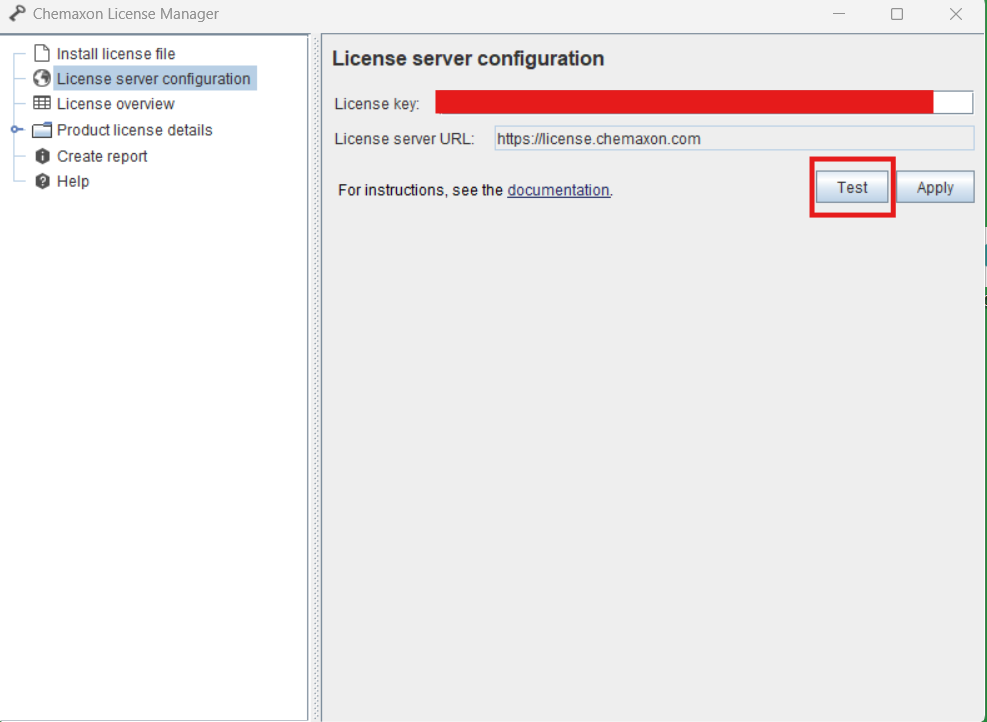
First, it would be important to verify your connection to the license server. You can do this by opening the License Manager. Once opened, go to the "License server configuration" section and click the "Test" button.
Here's how:
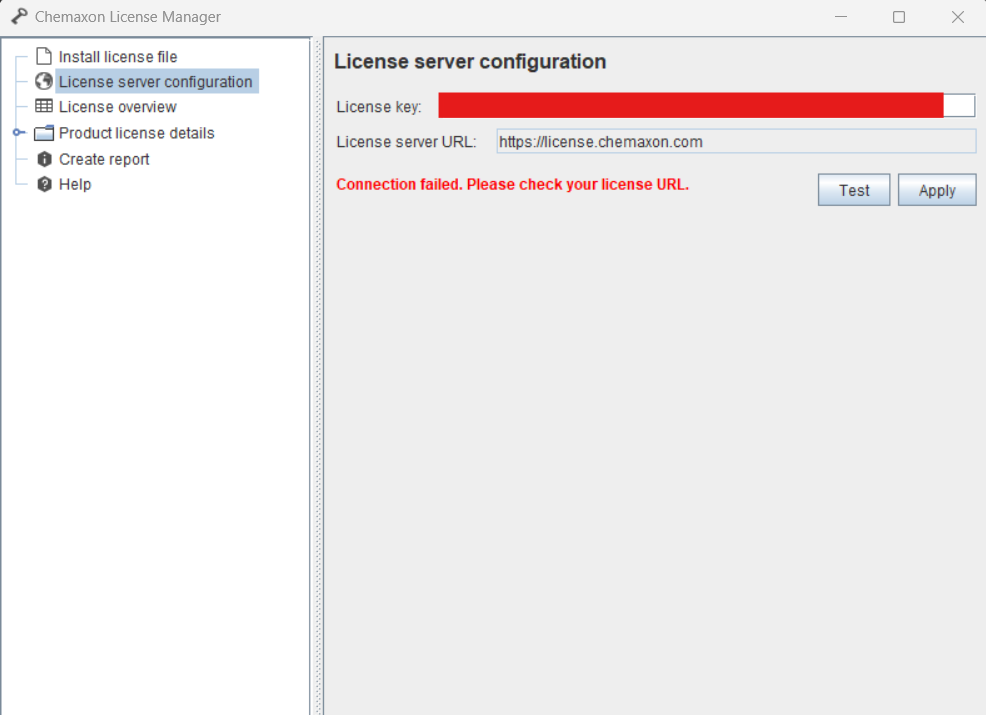
If pressing the Test button shows "Connection failed" this will be shown:
What could cause this?:
There may be a network issue in the background, so the program cannot reach the required server. This usually happens when an antivirus or firewall does not allow communication with the server. Try modifying the firewall or antivirus settings on the computer.
You should also check your VPN connection to verify whether it is blocking connection to our license server. In some secure networks, access for internet is limited or restricted. In these networks, additional setup is needed for the software to be properly usable. More info: setting up proxy
On the network, a proxy server must be configured, allowing the communication with https://license.chemaxon.com
If you need further assistance please open a ticket on our Support Portal or send an email to support@chemaxon.com. Please attach a license report to the ticket or to the email. You can find more details on how to generate one here.