Text Box Example
In this example, the MarvinBeans API is used to create a MTextBox containing formatted text.
The image below shows the created MTextBox in a MSketchPane.
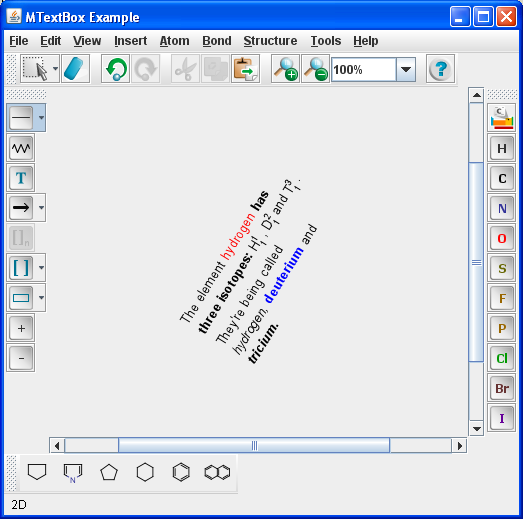
The following paragraphs demonstrate the major parts of the MTextBoxExample.java code. The source of the created text box can also be downloaded from MTextBoxExample.mrv.
To create a text box an empty Molecule should be created first. The Molecule has an MDocument attribute to which a MTextBox object can be set. If the MDocument object is null, it should be created first.
The MTextDocument attribute contains the formatted text in the MTextBox. The MTextDocument can be accessed this way:
Creating Formatted Text
The font of the formatted text is represented by a MFont object. The font family, font size, and font style should be set in the constructor. The following line of code will create a new "SansSerif" font with bold style and 12pt size:
The text's color and superscript/subscript information will be defined in MTextAttributes objects. The following piece of code will create a very simple MTextAttributes object (see the text "deuterium" in the picture above) with a blue text using the font defined in the previous step. The used 0 and 1 arguments are needed for the default values:
A bit more advanced use case with a superscript defined:
Adding Formatted Text to the Text Box
The formatted text should be added to the MTextDocument with the following method:
In the example we added the blue bold text "deuterium" to the MTextDocument with:
Setting the Coordinates and Rotation
After the text is formatted and added to the MTextBox, we can set its coordinates with:
For transforming the coordinates a CTransform3D is needed.
The following code creates an empty Ctransform3D then sets it to rotate the textbox around the Z-axis with 45 degrees. After that, the transformation center is set to be the center of the textbox and then the transformation is done on the textbox.