In-View Python Scripting Console in Plexus Connect
This documentation aims to provide users with a clear understanding of the Python scripting Console capabilities within Plexus Connect, illustrating how they can leverage this new tool to enhance data management and analysis processes. Practical examples are included.
Introduction
Plexus Connect offers many functionalities to facilitate daily workflows, though they may be unknown to regular users. Some of these features might initially appear too complex and discourage users from using them at all. A good example of such feature is Python scripting, a powerful tool for data manipulation and analysis. Recognizing that previous requirements for setting up Python scripting could be a barrier, we've streamlined the process with the introduction of an integrated Python scripting console.
This built-in console eliminates the preliminary setup complexities, making Python scripting straightforward and directly accessible alongside your dataset. It's designed to simplify the scripting process, making it accessible even to users with minimal Python knowledge. Here’s a brief overview of what can be achieved with Python scripting built-in console in Plexus Connect:
- Custom Visualizations: Create customized charts and graphs using libraries like Matplotlib and Plotly, enabling enhanced data presentation.
- Automation: Automate repetitive tasks, such as data search, data exports and periodic analyses, to improve efficiency and accuracy.
- Custom Tools: Develop your own functions and tools that expand Plexus Connect’s capabilities, tailored to your specific needs.
- Data Cleaning: Utilize scripts to automate the cleaning process, including removing duplicates, filtering data, and managing missing values, ensuring your datasets remain pristine.
- Collaboration: Facilitate script sharing among team members to foster collaboration and standardize methodologies for handling data.
Requirements and Setup
* Python scripting console is available directly in the UI only in Plexus Connect version 23.16.0 or higher.
* Python version 3.7 or higher installed on your computer. Python installation is described for example here in our documentation. This installation is necessary to run any python script on your computer.
* Connect API containing Plexus Connect Python library, downloadable on our website. Connect API installation is described here in our documentation. This installation integrates Python into Plexus Connect and enables to run scripts directly in Plexus Connect. Connect API package also contains folder with exemplary scripts, which can be modified or used as templates.
Examples of Usage
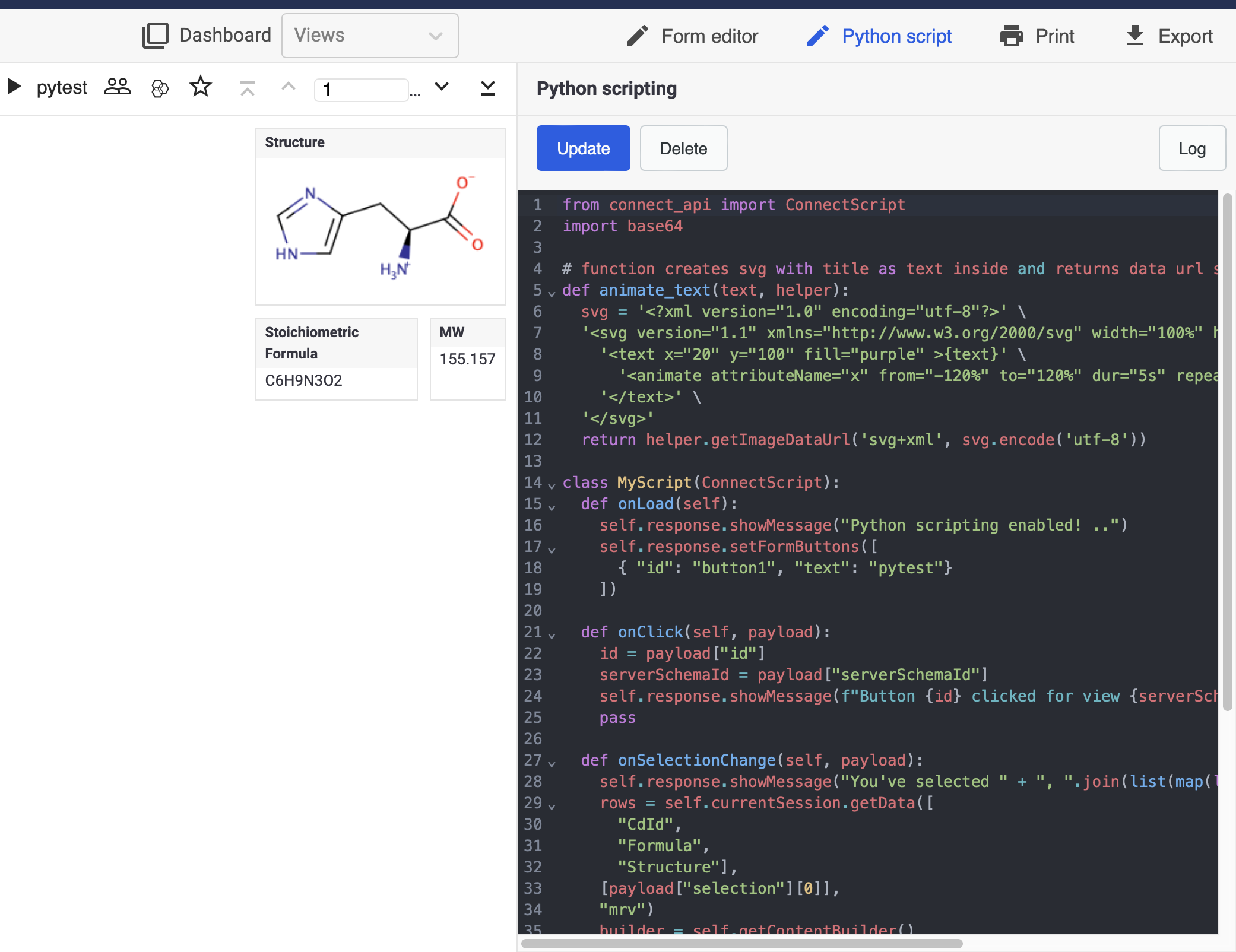
Once the requirements are satisfied, the Python scripting console is ready to use. To access the console, navigate to Python Script tab in the upper right corner of any open view (see the screenshot above).
Example 1: Sample Script
Upon opening the console, you'll find a preloaded sample script. This script is there to show you what a basic Python script looks like. It includes three important methods you can use in Plexus Connect: OnLoad, OnClick, and OnSelectionChange. Each method triggers a different event. For example, in our initial script, every method causes a specific message to pop up (look at lines 15 to 19, 21 to 25, and 27 to 35 in the script). To get the script working, just hit Save and refresh your view.
In general, methods define what will happen when certain action is taken.
OnLoadmethod is activated when new data is loaded. In the sample script, message "Python scripting enabled!.." appears.
OnClickmethod is activated upon clicking on some object in the View. In the sample script, message "Button button1 clicked for view"
OnSelectionChangemethod is activated upon browsing thru your data set. In the sample script, message "You've selected"
Example 2: Adding Static Graphical Object to a View
To further extend python versatility, so-called libraries often have to be installed. In this example, we will install pillow library that adds image processing capabilities and supports all typical image formats (jpg, jpeg, png, svg, etc.).
To install pillow library, open command line (Terminal on Mac) and write pip3 install pillow. The installation takes few second.
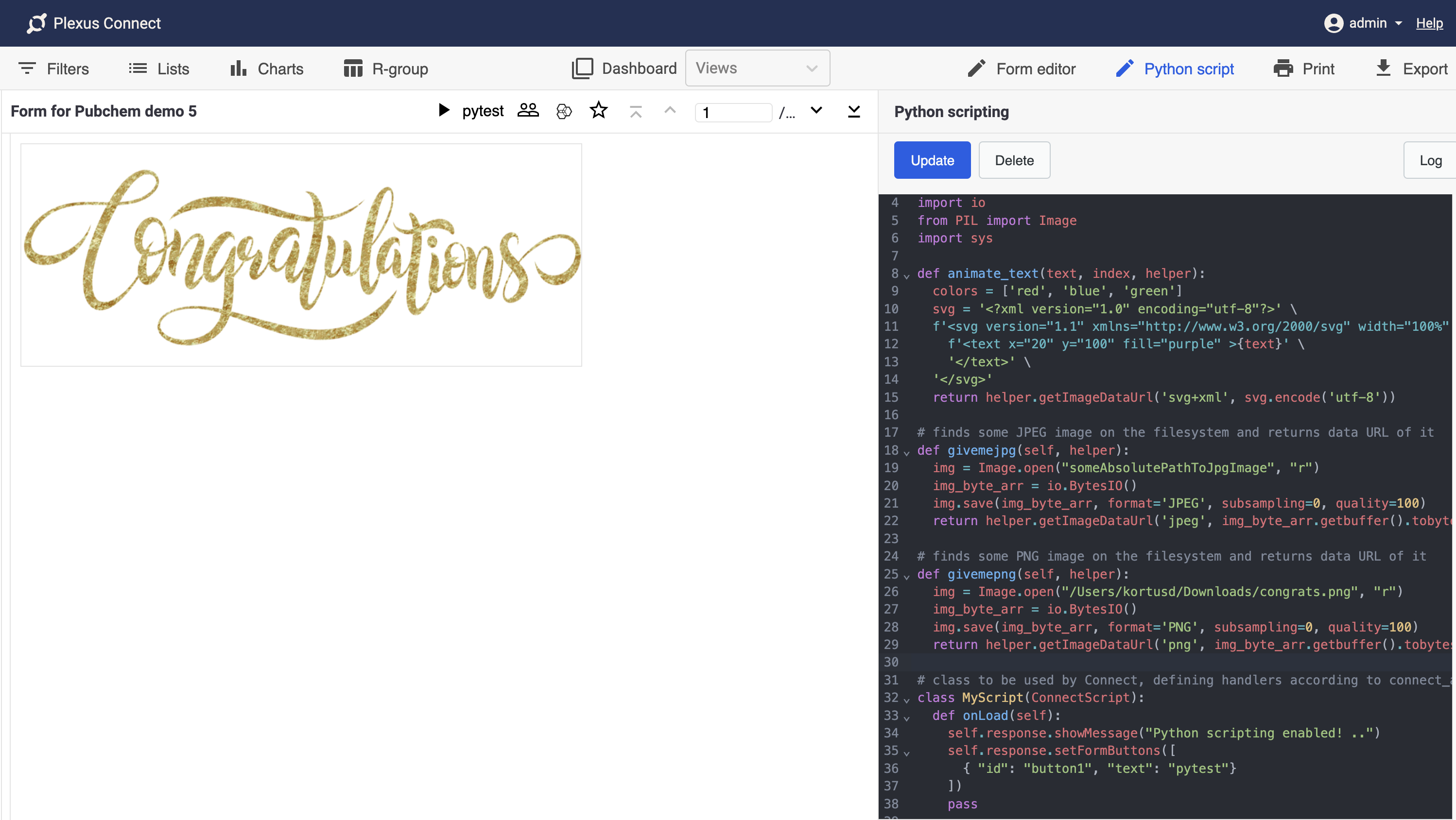
The following script allows to display an image in either jpeg or png format located on your computer. In order to display the image, add Canvas Widget to your form view (preferably, there should be only one canvas widget). Then, copy paste the script to the in-view python console and replace "someAbsolutePathToJpgImage" in jpeg or "someAbsolutePathToJpgImage" in png section of the script with absolute path pointing to your image. Hit save and reload the view. The Canvas widget should be occupied by the image.
from connect_api import ConnectScript
import base64
import os
import io
from PIL import Image
import sys

def animate_text(text, index, helper):
  colors = ['red', 'blue', 'green']
  svg = '<?xml version="1.0" encoding="utf-8"?>' \
  f'<svg version="1.1" xmlns="http://www.w3.org/2000/svg" width="100%" height="200"  style="background: {colors[index]}">' \
    f'<text x="20" y="100" fill="purple" >{text}' \
    '</text>' \
  '</svg>'
  return helper.getImageDataUrl('svg+xml', svg.encode('utf-8'))

# finds some JPEG image on the filesystem and returns data URL of it
def givemejpg(self, helper):
  img = Image.open("someAbsolutePathToJpgImage", "r")
  img_byte_arr = io.BytesIO()
  img.save(img_byte_arr, format='JPEG', subsampling=0, quality=100)
  return helper.getImageDataUrl('jpeg', img_byte_arr.getbuffer().tobytes())

# finds some PNG image on the filesystem and returns data URL of it
def givemepng(self, helper):
  img = Image.open("someAbsolutePathToPngImage", "r")
  img_byte_arr = io.BytesIO()
  img.save(img_byte_arr, format='PNG', subsampling=0, quality=100)
  return helper.getImageDataUrl('png', img_byte_arr.getbuffer().tobytes())

# class to be used by Connect, defining handlers according to connect_api documentation
class MyScript(ConnectScript):
  def onLoad(self):
    self.response.showMessage("Python scripting enabled! ..")
    self.response.setFormButtons([
      { "id": "button1", "text": "pytest"}
    ])
    pass

  def onClick(self, payload):
    id = payload["id"]
    serverSchemaId = payload["serverSchemaId"]
    self.response.showMessage(f"Button {id} clicked for view {serverSchemaId} ..")
    pass

  # on each selection change and initial load of view, onSelectionChange handler is called by Connect,
  # passing also IDs od each canvas widget in the form
  def onSelectionChange(self, payload):
    for index, canvasId in enumerate(payload["canvasWidgetIds"]):
        # here for each canvas widget it will generate example image, png or jpeg and sends it as a response
        self.response.showInCanvas(canvasId, givemepng(self, self.helper) if index == 0 else givemejpg(self, self.helper))
    pass

# initializes the handlers
MyScript().execute()
Example 3: Adding Dynamic Graphical Object to a View
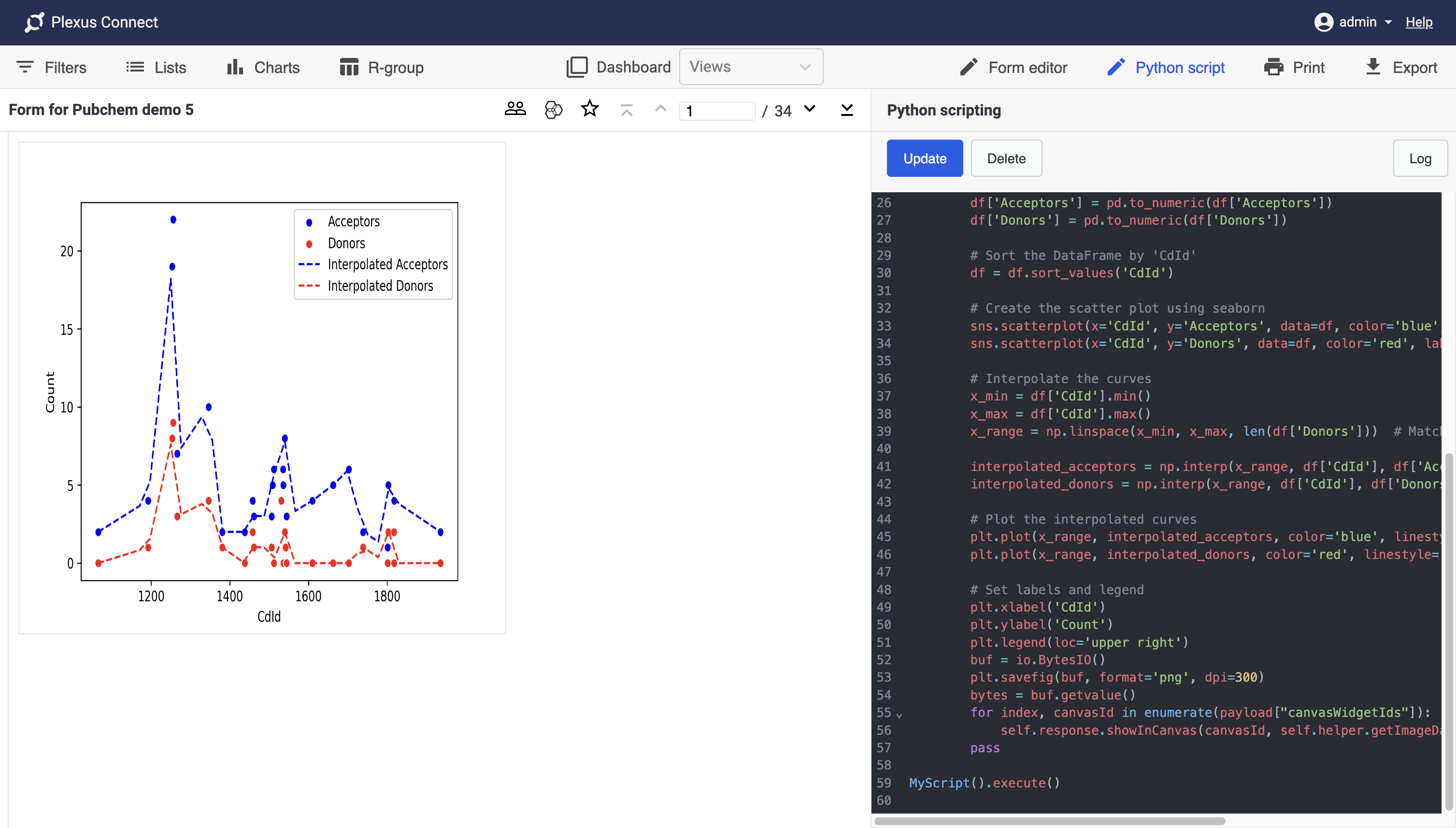
The following script creates chart from current dataset. If the dataset is changed (filtering data, etc.) the chart is updated accordingly. OnDataLoad method used in this script updates the chart every time new data is displayed.
Both x and y variables (fields) are specified in the script. In order to display the chart, add Canvas Widget to your form view (preferably, there should be only one canvas widget). Then, copy paste the script to the in-view python console, hit save and reload the view. The Canvas widget should be occupied by the chart.
from connect_api import ConnectScript
import base64
import matplotlib.pyplot as plt
import numpy as np
import pandas as pd
import seaborn as sns
import io

class MyScript(ConnectScript):
    def onLoad(self):
        pass

    def onDataLoad(self, payload):
        allData = self.currentSession.getData([
            "CdId",
            "Acceptors",
            "Donors"])
        # Create a DataFrame from the data
        cdId = [inner_list[0] for inner_list in allData]
        acceptors = [inner_list[1] for inner_list in allData]
        donors = [inner_list[2] for inner_list in allData]
        df = pd.DataFrame({'CdId': cdId, 'Acceptors': acceptors, 'Donors': donors})

        # Convert the columns to numeric types
        df['CdId'] = pd.to_numeric(df['CdId'])
        df['Acceptors'] = pd.to_numeric(df['Acceptors'])
        df['Donors'] = pd.to_numeric(df['Donors'])

        # Sort the DataFrame by 'CdId'
        df = df.sort_values('CdId')

        # Create the scatter plot using seaborn
        sns.scatterplot(x='CdId', y='Acceptors', data=df, color='blue', label='Acceptors')
        sns.scatterplot(x='CdId', y='Donors', data=df, color='red', label='Donors')

        # Interpolate the curves
        x_min = df['CdId'].min()
        x_max = df['CdId'].max()
        x_range = np.linspace(x_min, x_max, len(df['Donors']))  # Match the number of data points in the y array

        interpolated_acceptors = np.interp(x_range, df['CdId'], df['Acceptors'])
        interpolated_donors = np.interp(x_range, df['CdId'], df['Donors'])

        # Plot the interpolated curves
        plt.plot(x_range, interpolated_acceptors, color='blue', linestyle='dashed', label='Interpolated Acceptors')
        plt.plot(x_range, interpolated_donors, color='red', linestyle='dashed', label='Interpolated Donors')

        # Set labels and legend
        plt.xlabel('CdId')
        plt.ylabel('Count')
        plt.legend(loc='upper right')
        buf = io.BytesIO()
        plt.savefig(buf, format='png', dpi=300)
        bytes = buf.getvalue()
        for index, canvasId in enumerate(payload["canvasWidgetIds"]):
            self.response.showInCanvas(canvasId, self.helper.getImageDataUrl('image/png', bytes))
        pass

MyScript().execute()
Example 4: Adding Interactive 3D Chart
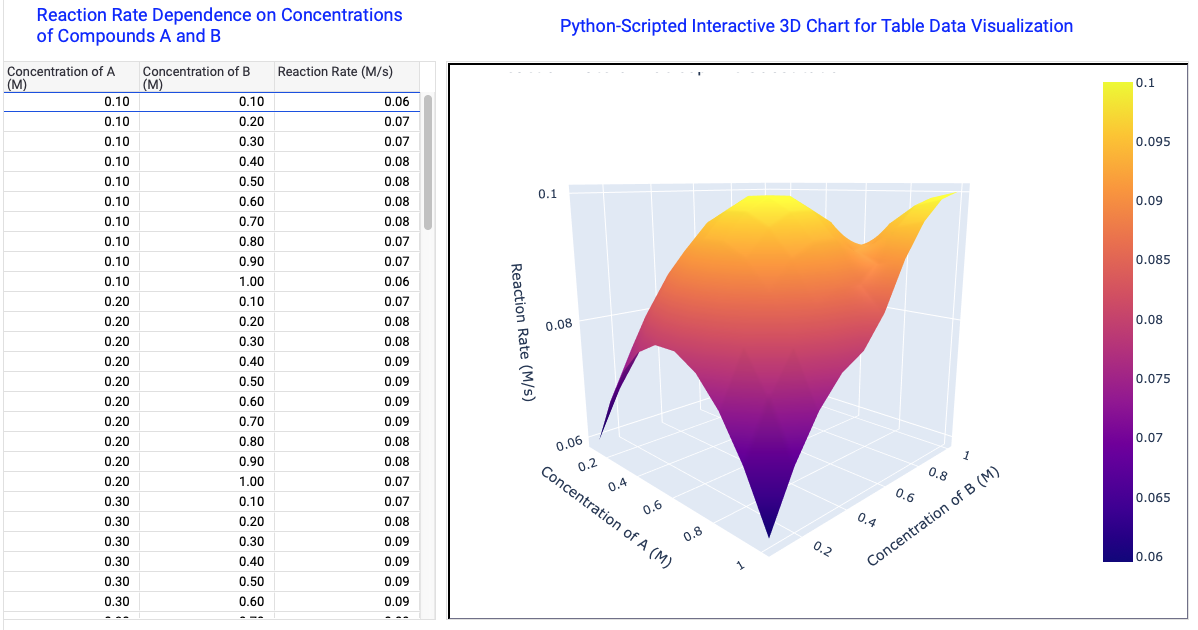
The following Python script is designed for visualizing the relationship between two variables and an outcome in experimental data, such as reactant concentrations and reaction rates in chemistry. It automatically pulls data from chosen fields and displays it into a 3D surface plot. The interactive plot helps Plexus Connect users analyze trends and optimize conditions for various types of experiments or datasets.
from connect_api import ConnectScript
import plotly.graph_objects as go
import pandas as pd
import numpy as np
class MyScript(ConnectScript):
    def onLoad(self):
        # Assuming data is loaded when the script is initialized
        self.onDataLoad()
    def onDataLoad(self):
        allData = self.currentSession.getData([
            "Concentration of A (M)",
            "Concentration of B (M)",
            "Reaction Rate (M/s)"])
        # Create a DataFrame from the data
        conc_A = [inner_list[0] for inner_list in allData]
        conc_B = [inner_list[1] for inner_list in allData]
        rate = [inner_list[2] for inner_list in allData]
        df = pd.DataFrame({'Concentration of A (M)': conc_A, 'Concentration of B (M)': conc_B, 'Reaction Rate (M/s)': rate})
        # Convert the columns to numeric types
        df['Concentration of A (M)'] = pd.to_numeric(df['Concentration of A (M)'])
        df['Concentration of B (M)'] = pd.to_numeric(df['Concentration of B (M)'])
        df['Reaction Rate (M/s)'] = pd.to_numeric(df['Reaction Rate (M/s)'])
        # Create the 3D scatter plot using plotly
        fig = go.Figure(data=[go.Surface(
            z=df.pivot(index='Concentration of A (M)', columns='Concentration of B (M)', values='Reaction Rate (M/s)').values,
            x=np.sort(df['Concentration of A (M)'].unique()),
            y=np.sort(df['Concentration of B (M)'].unique())
        )])
        # Update layout for better visualization
        fig.update_layout(
            title='Reaction Rate of Nucleophilic Substitution',
            scene=dict(
                xaxis_title='Concentration of A (M)',
                yaxis_title='Concentration of B (M)',
                zaxis_title='Reaction Rate (M/s)'
            ),
            width=720,
            height=500,
            margin=dict(l=0, r=0, b=0, t=0)
        )
        # Save HTML content to a string
        html_content = fig.to_html()
        canvasId = "B47B300F81BE40D2BB2E9B965EB233C6"
        self.response.showInCanvas(canvasId, html_content, "html")
    def onWidgetClick(self, payload):
        pass
MyScript().execute()
Should you require a solution precisely tailored to your specific needs, the Instant JChem support team is ready to assist. Contact us via Chemaxon Freshdesk for custom-designed scripts.