Actions
Convert to Structure by ID from Database
With these options, you can specify the database and conversion settings for the following actions:
The figure below shows the available database and conversion settings.
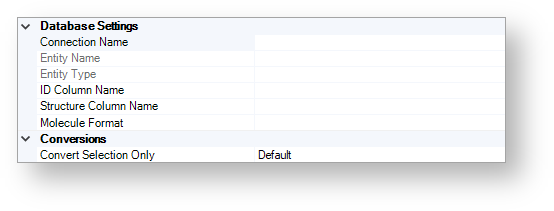
Database Setting
By using these options, you can specify the database, table, and column from which you would like to import data.
Connection Name
All available databases are listed in the Select Entity dialog.
Entity Name
This field is automatically filled when a connection selected.
Entity Type
This field is automatically filled when a connection selected.
ID Column Name
Use the combo box to specify the name of the ID column.
Structure Column Name
Use the combo box to specify the name of the structure column.
Molecule Format
If you know the format of the structures to be imported, you can specify it by using the drop-down list. This speeds up the import process.
By default, the format is not specified.
Conversions
Convert Selection Only
Use this option to specify whether the Selection only box is automatically checked or not.
The possible values for this option are as follows:
TRUE
FALSE
DEFAULT
The default value is DEFAULT, which is equal to FALSE.
Convert to Structure by ID from Compound Registration
With these options, you can specify the connection and parameter settings for the Resolve CompReg IDs into Structures action.
The figure below shows the available connection and parameter settings.
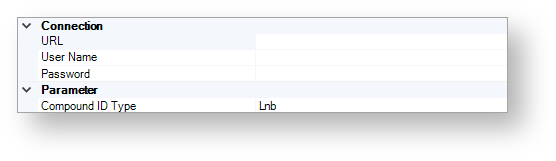
Connection
URL
Specify the URL of the CompReg database.
User Name
Specify the user name which can be used for login.
Password
Specify the password that is associated with the user name.
Parameter
Compound ID Type
Use this option to specify the compound ID type. The specified type must match the ID types on your sheet.
The following types are available:
Lnb
LN
CN
PCN
LotId
StructId
Convert HELM to Structure or Structure to HELM by Biomolecule Toolkit
With these options, you can specify the database and conversion settings for the following actions:
- ConvertHelmToStructureAction
- ConvertStructureToHelmAction
in Conversions
The figure below shows the available database and conversion settings.
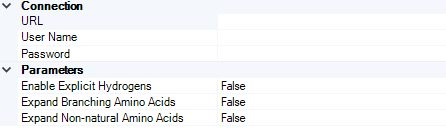
Connection
URL
Specify the URL of the HELM to Structure - Structure to HELM service, http and secure https can be handled as well.
User Name
Specify the user name which can be used for login.
Password
Specify the password that is associated with the user name.
Parameters
Compound ID Type
Use this option to specify the default output display of peptide structures after the conversion.
The following types are available:
Enable Explicit Hydrogens
Expand Branching Amino Acids
Expand Non-natural Amino Acids
The default type is False to all 3 options. The detailed description of these parameters are in the documentation of the Biomolecule Toolkit.
Convert from Structure
The figure below shows the available convert from structure options.

Placement
Placement
By using this option, you can specify whether the results of the conversion process replace the structures or not.
The available values are as follows:
Replace
InsertRight
Convert to Structure
The figure below shows the available convert to structure options.
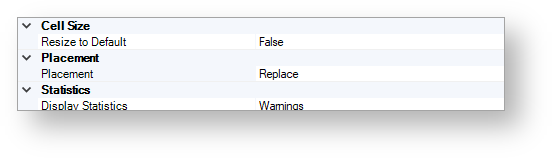
Cell Size
Resize to Default
By using this option, you can specify whether cells are resized to default before the process or not.
The available values for this option are as follows:
TRUE
FALSE
Placement
Placement
By using this option, you can specify whether the results of the conversion process replace the texts or not.
The available values are as follows:
Replace
InsertRight
Statistics
Display Statistics
By using this option, you can specify the statistics display behavior.
The following values are available.
On
Off
Warnings
The default value is Warnings. In this case, only issues are displayed, but no conversion report is generated.