Search
The web client application includes a Search page that can be accessed from the blue Navigation bar.
Search enables locating entries already stored in the registry database using a set of filtering options. For example, a very general search can be chosen that scans the entire database, or a very specific one using the combination of the available filters.
The search service also supports the use of chemical structures as queries.
On the Search page currently only the search for registered compounds is available (search for the salts and/or solvates from the DB is not possible).
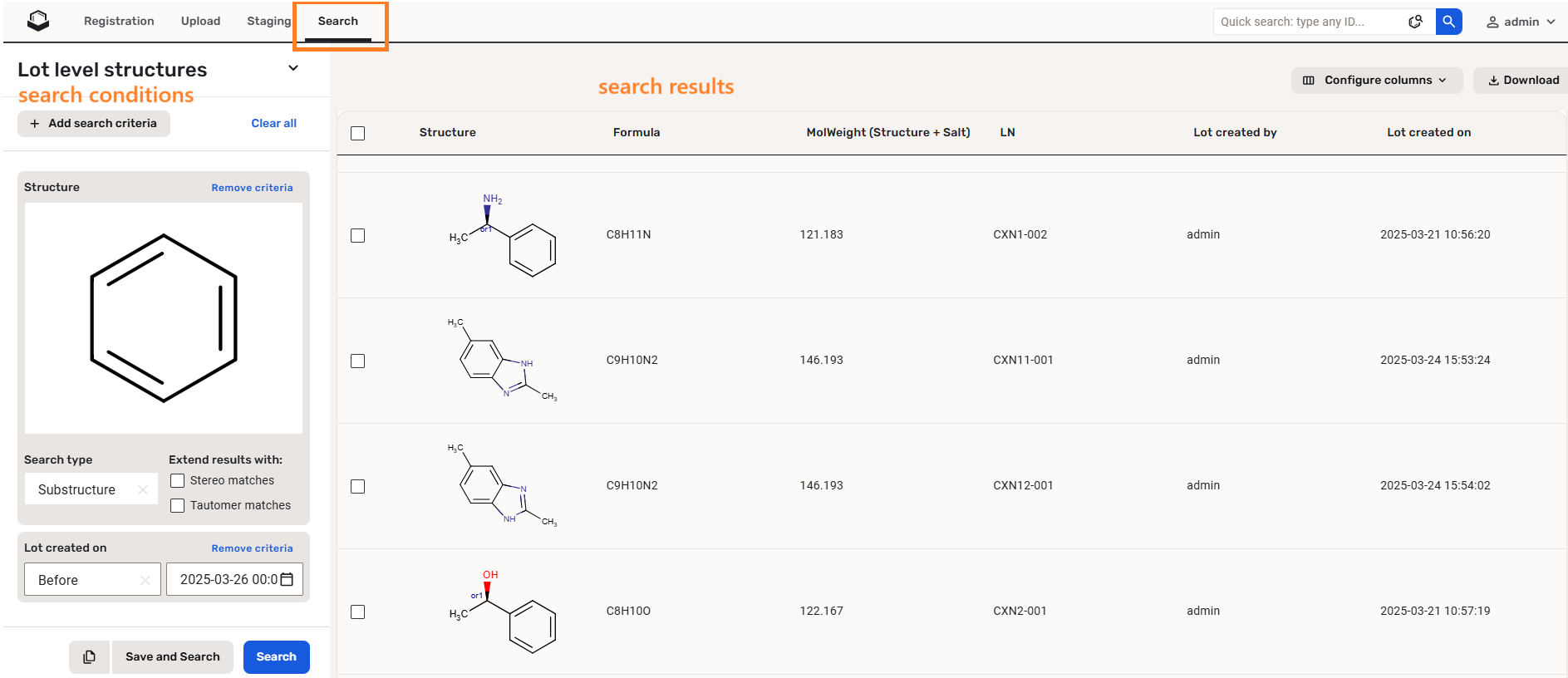
The Search page is divided in two sections: search conditions (left side of the page) and search results (right side of the page).
 |
|---|
| Search page |
Since version 20.8.0 by default the Search page will return no search results. You need to add the search criteria in order to have the registered items displayed.
You can just hit the Search button even without setting search criteria, but note that the search response might take even several minutes.
Search conditions
The search conditions located on the left side of the Search page consist of:
Search for
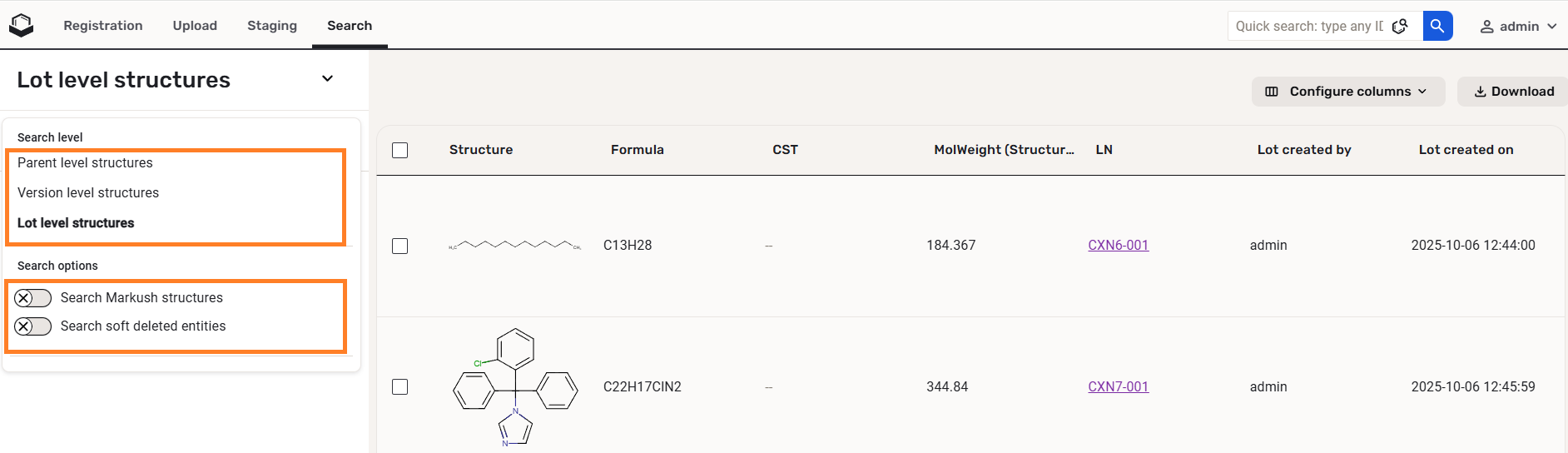
Compounds can be searched on parent, version or lot level.
Search options
Two main types of search can be distinguished: simple and Markush search (the default is the simple search).
 |
|---|
| Search options |
Since version 20.8.0 it is also possible to search for (soft) deleted compounds. You can do this with the help of the toggles on the left hand side.
- Search for existing normal compounds: Turn Off Markush search and Deleted search toggles.
- Search for existing Markush structures: Turn On Markush search and turn Off Deleted search toggles.
- Search for deleted normal compounds: Turn Off Markush search and turn On Deleted search toggles.
- Search for deleted Markush structures: Turn On Markush search and Deleted search toggles.
Search criteria
The search criteria can be selected from a drop-down list. The list of search criteria is populated based on the previously set "search for" option.
E.g. if "parent level" is set, the available search criterias are: Project, Structure, Structure name, Formula, Molweight (Structure), Structure type, Parent submitter, Parent created by, Parent created on, Molweight (Parent), Stereochemistry, Geometry isomerism, PCN, CST, Restricted.
For version level more structure criteria are available, beside the ones for parent level, Version submitter, Version created by, Version created on, CN, Molweight (Version), Molweight (Version+Salt), Version fingerprint are available.
If there are other additional data fields configured for a given level on the Forms and Fields page, those will be also visible in the search criteria list.
Save the search conditions
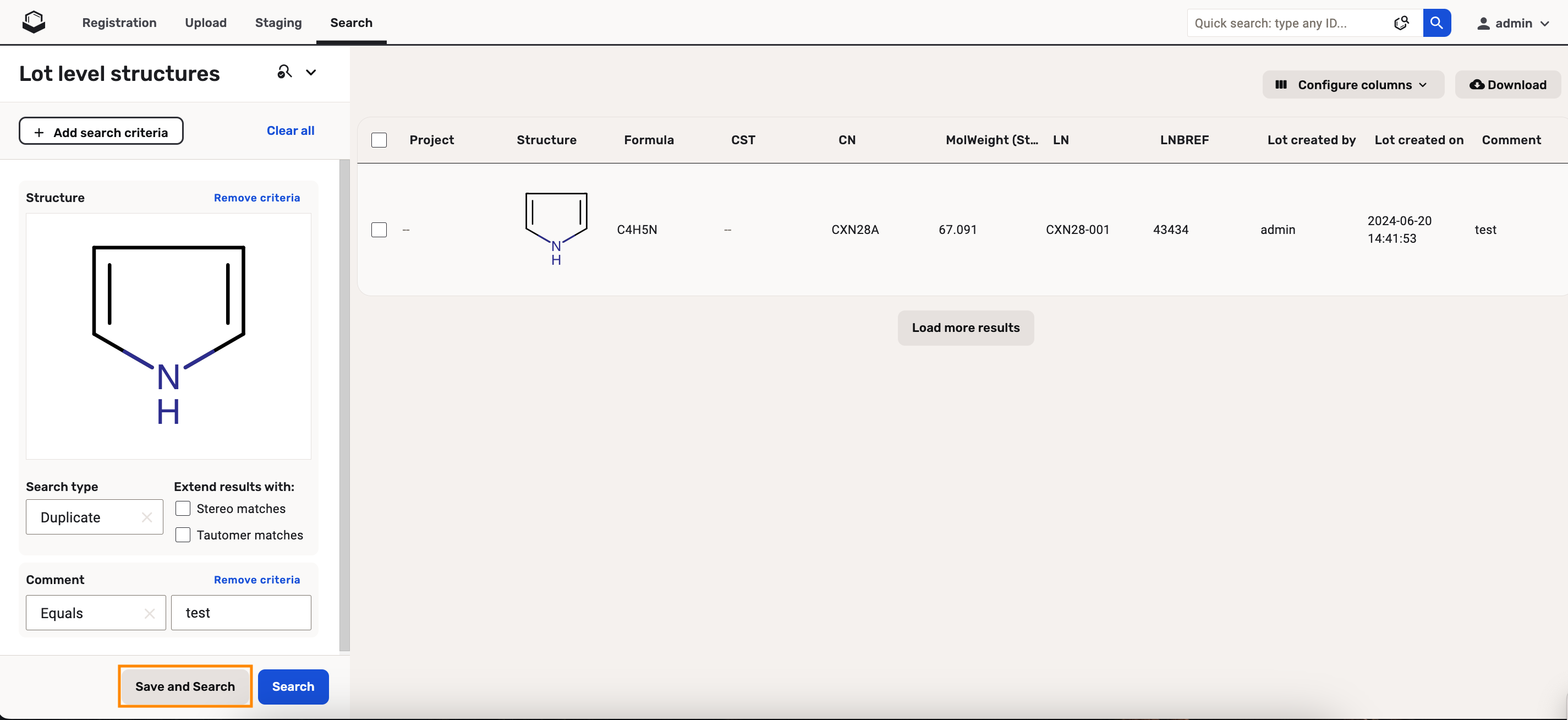
Since version 24.3.0 the users can save the search conditions on the Search page. The configuration is linked to the current user. When the search page is opened again (even after logging out/logging in) then the user will see all the saved filters on the search page. The search button should be hit again to see the actual search results.
Since version 24.3.3 the search conditions can be saved separately for all 3 levels (parent, version and lot). The Search options (Markush search, Deleted search) are also saved.
 |
|---|
| Save the search conditions |
For ID-based fields when you save a search criteria with ID then the corresponding value will appear in the search criteria field.
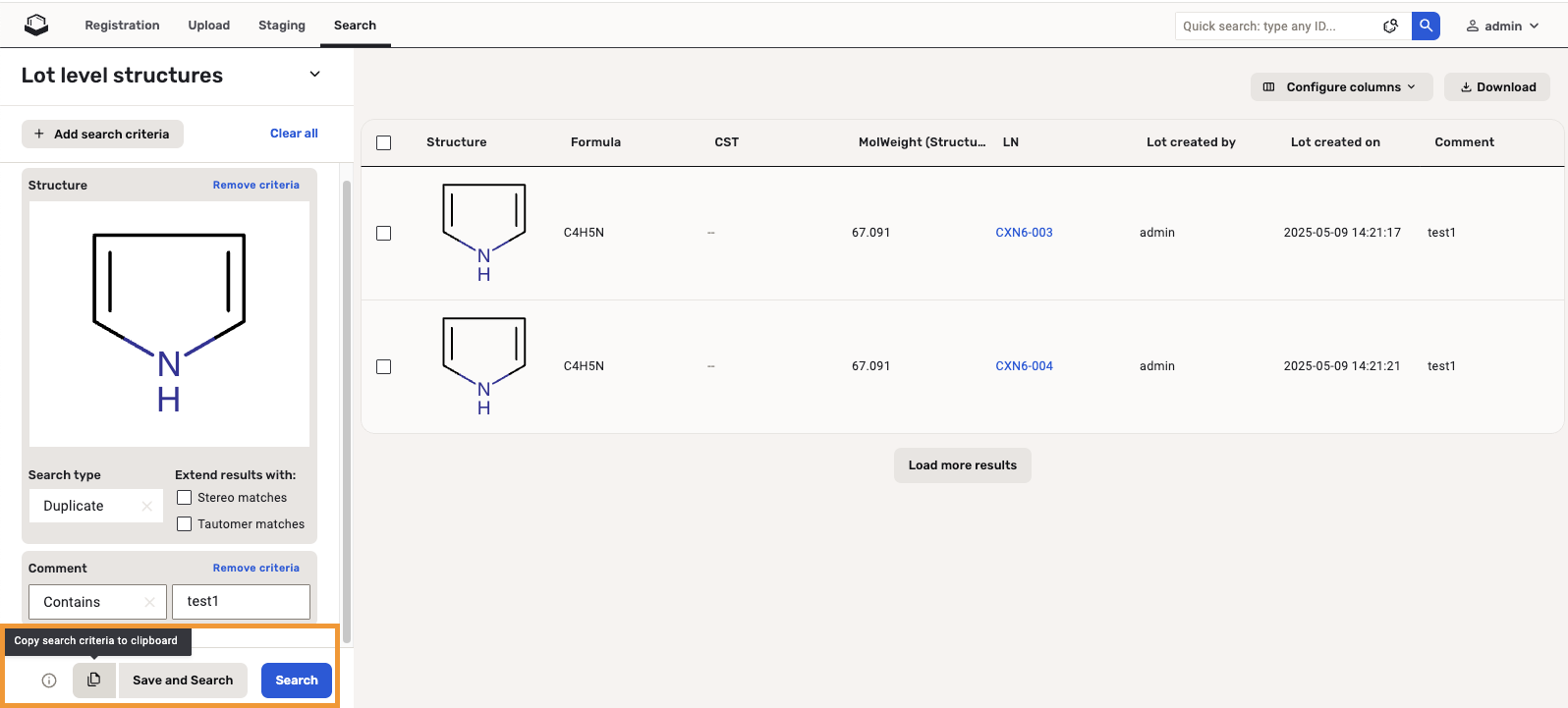
Since version 24.3.4 the users can share search parameters with each other. First the search criteria should be saved manually on the search page. When the user clicks on “copy” search criteria then a link encapsulating the search criteria will be copied to the clipboard. User(s) can re-run the search using that particular search criteria by pasting and loading the link into the web browser.
 |
|---|
| Copy the search conditions |
When using the "Copy search criteria to clipboard" the following steps should be performed:
- set a search criteria
- use the "Save and search"
- use the "Copy search criteria to clipboard"
- send the URL to a different user
- the URL is pasted (search is not executed, just the criteria is pasted)
- the user should click on the "Search" in order to view the results
Since version 25.1.1 the latest 100 search parameters are stored.
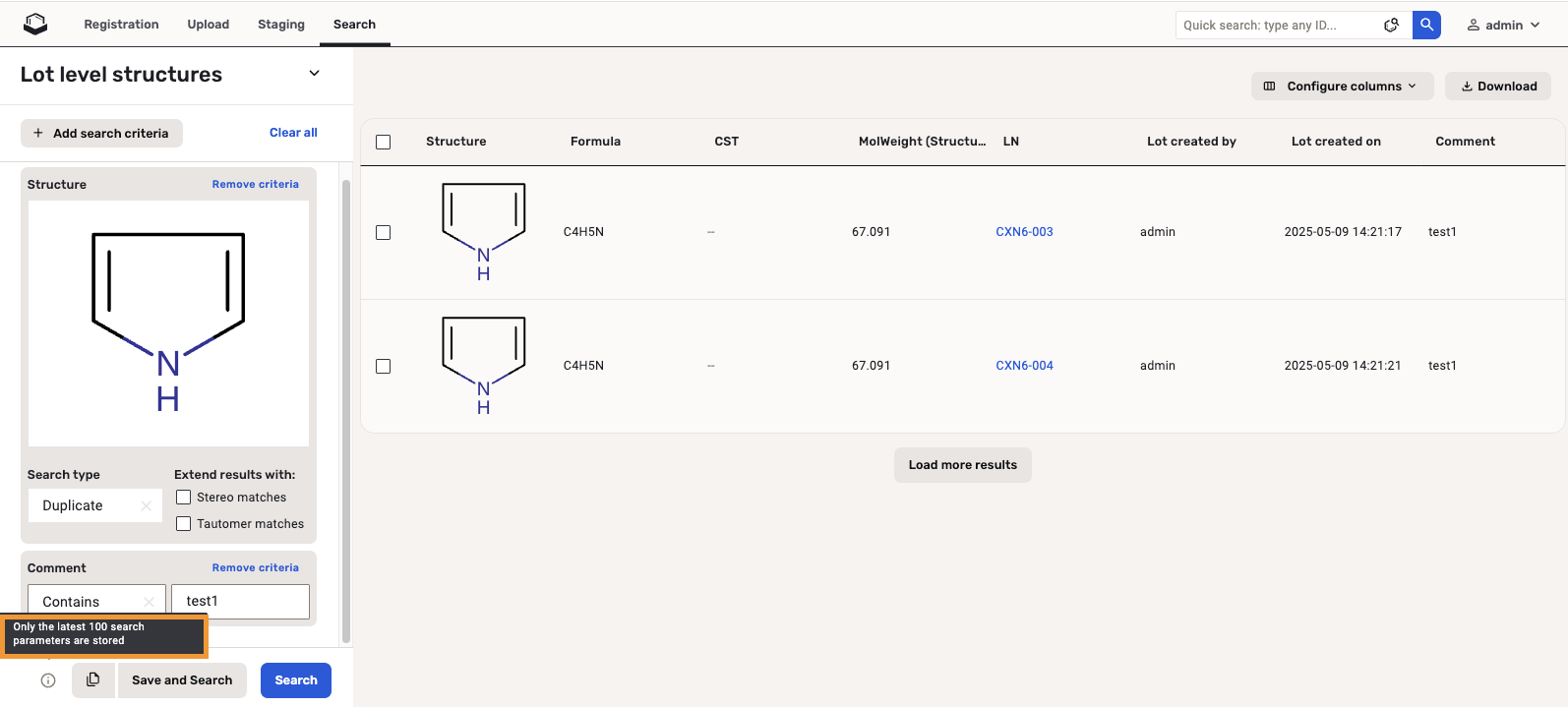 |
|---|
| The latest 100 search parameters are stored |
Version fingerprint
Version fingerprint can be used as search criteria in order to find compound versions or lots that contain a given salt.
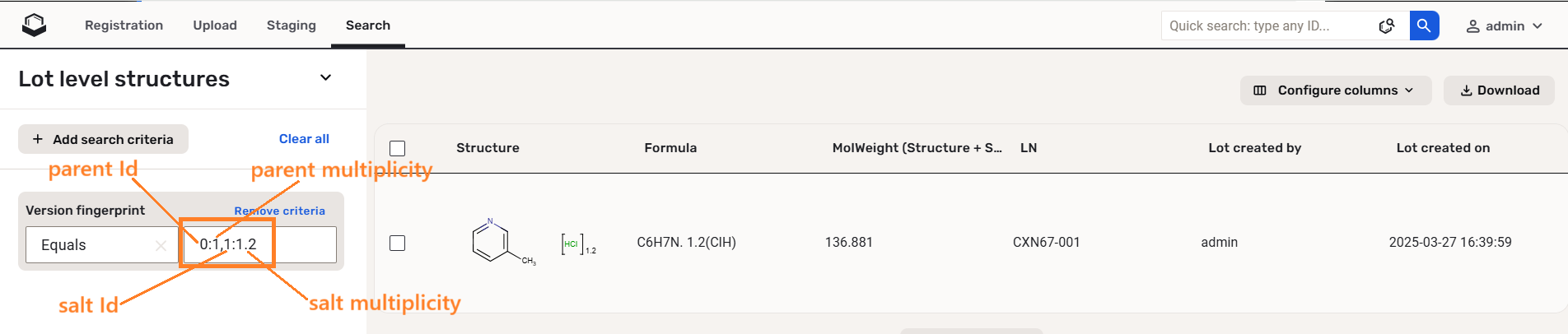 |
|---|
| Using version fingerprint as search criteria on the Search page |
Structure search options are to be selected if the specified search conditions contain structural criteria.
Currently, Structure type is among search criteria, but numbers should be provided in order to search for a given structure type.
The list of numbers for each structure type:
0: Single Structure
1: Mixture
2: Formulation
3: "ISOMER #"
4: Markush (Markush search should be enabled)
5: Alternate
6: Polymer
7: No structure
Field identifiers
Since version 20.19.0 field identifiers are displayed either next to field labels or as a tooltip when hovering over the respective field label in all relevant places on the search page.
Field identifiers are shown in a tooltip on the Search page above the column names (labels).
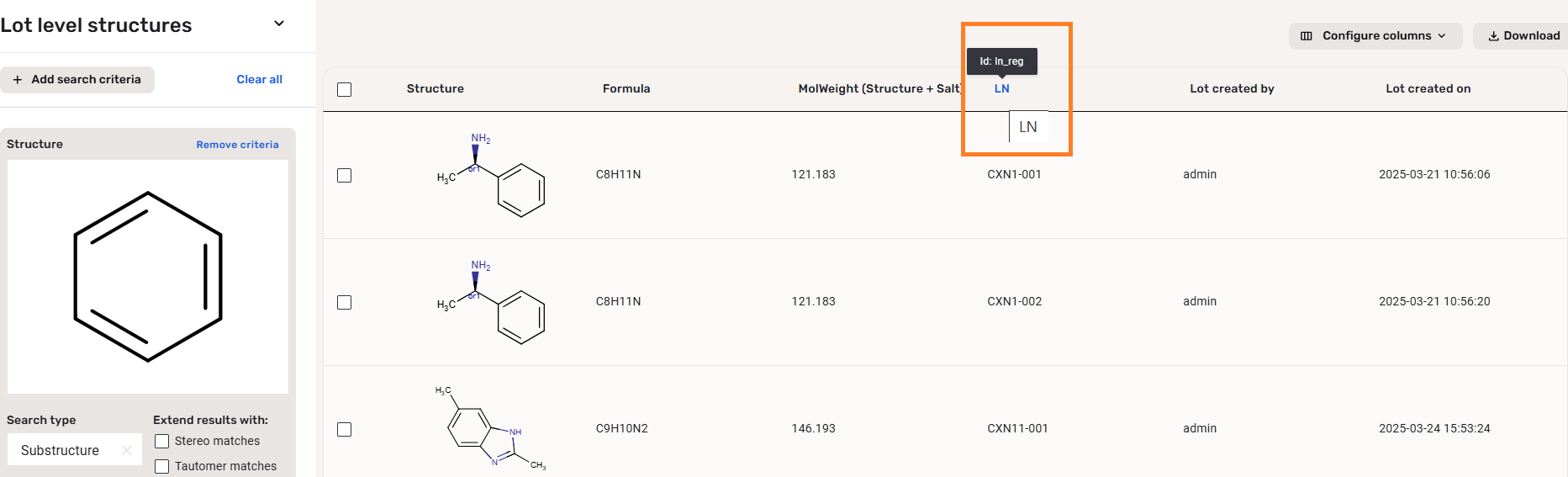 |
|---|
| Search page header with id tooltip |
Ids are also displayed as tooltip while configuring new columns.
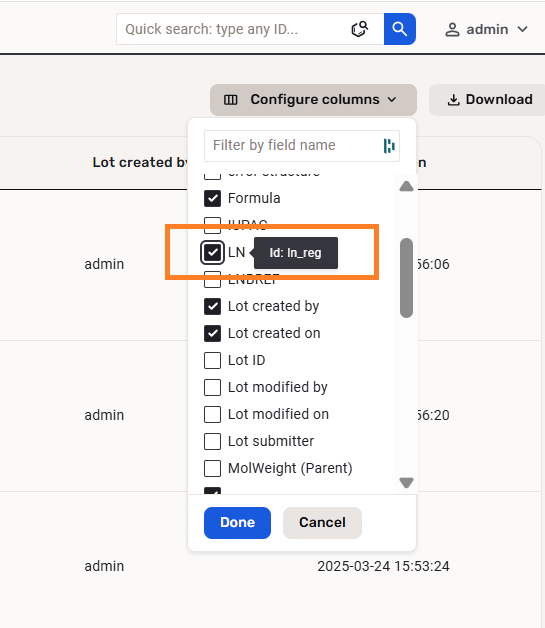 |
|---|
| Configure columns - id tooltip |
Bulk edit data, and search criteria definition dropdowns show the field identifier alongside with the label.
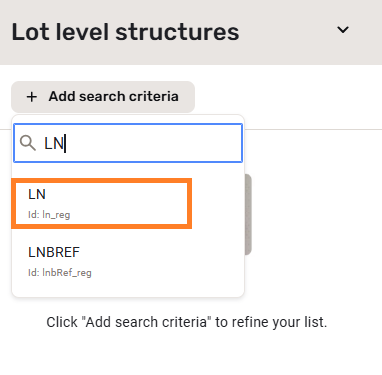 |
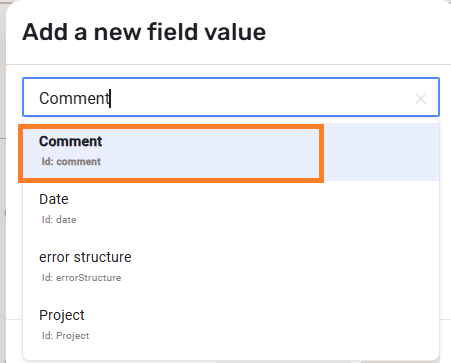 |
|---|---|
| Search criteria - labels and ids | Bulk edit - labels and ids |
Select type fields as search criteria
Since version 21.3.0 for select fields there is a drop-down with the possible values. When you would like to search for e.g. IDs that are not part of the dictionary anymore, you can use the ‘Search by ID’ checkbox and add the ID as free text.
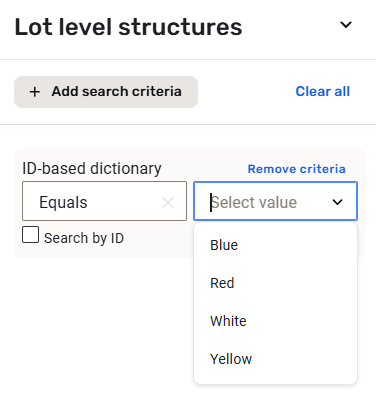 |
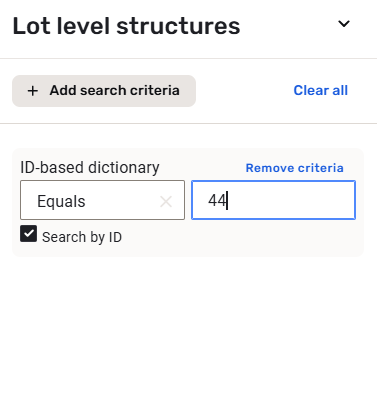 |
|---|---|
| ID-based field drop-down with values | Search by ID |
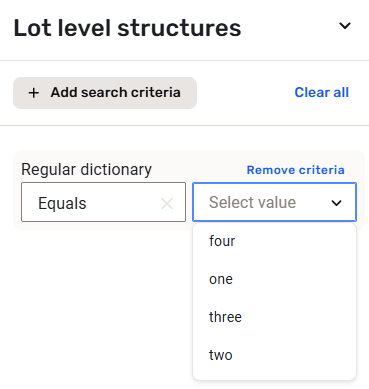
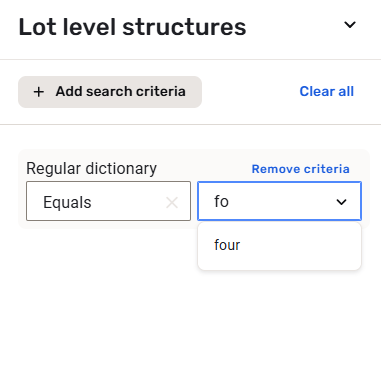
For non-ID-based dictionaries and fields with manually provided list items you can use a combobox for search. It means you can see the currently available items in a drop-down and also can do search based on free text.
 |
 |
|---|---|
| Non-ID-based field drop-down with values | Free text search |
Search results
As a result of a search, a search table will be populated, where only the first 50 lines are visible. At each scroll 50 more hits will become available from the bottom of the page.
The table contains different columns depending on which level of the tree (parent, version or lot) is selected for search.
Default setting on parent level:
- Structure
- Formula
- Molweight(Structure)
- CST
- PCN
- Parent created by
- Parent created on
Default setting on version level:
- Structure
- Formula
- CST
- CN
- Molweight(Structure+Salt)
- Version created by
- Version created on
Default setting on lot level:
- Structure
- Formula
- CST
- Molweight(Structure+Salt)
- LN
- Lot created by
- Lot created on
The visible columns can be easily configured by pressing the [Configure columns] button located on the top right side above the search result table.
When clicking on the structure, a structure preview containing the fused image will be opened.
Each result can be opened on the Details page by clicking on the row of the given compound (except deleted records).
Search results can be downloaded to an SD file. For more details consult the Download chapter.
Since version 21.3.0 it is possible to use ID-based fields (more information can be found here). When e.g. dictionary item was deleted, is not found, external dictionary cannot be reached, internal dictionary was deleted then “At least one stored value could not be resolved from the dictionary” tooltips are visible in the search results.
|  |
|
| ----------------------------------------------------------------------------------------------------------------------------------------- |
| Non-resolved ID-based field value on Search page |
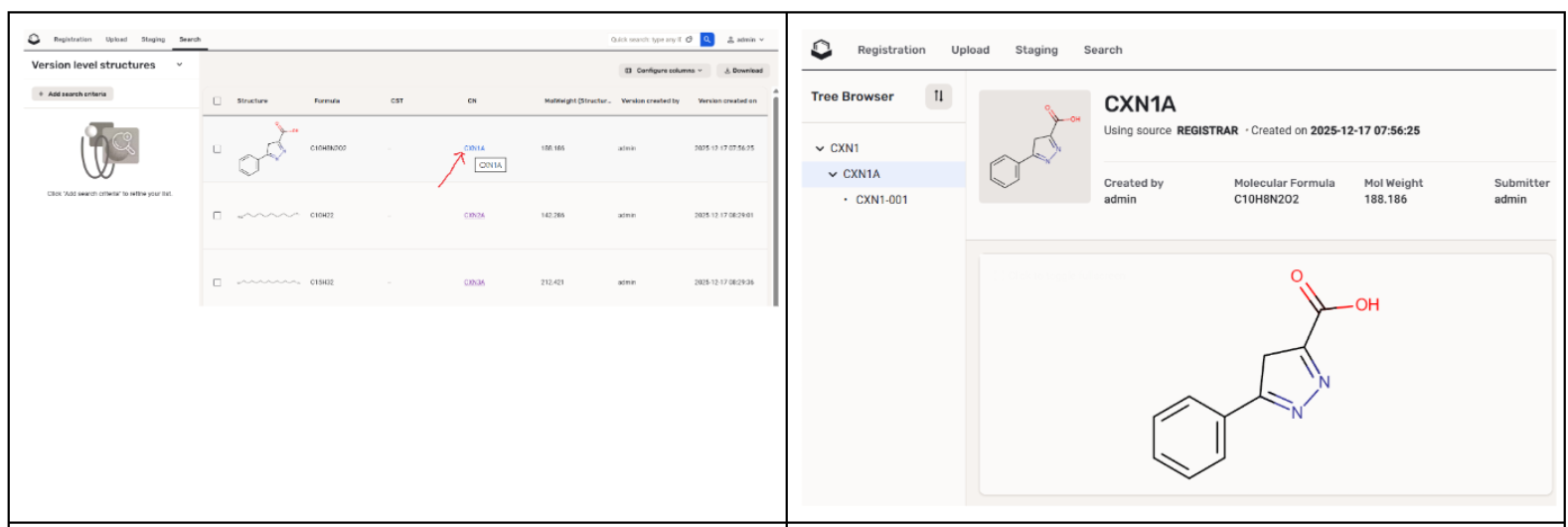
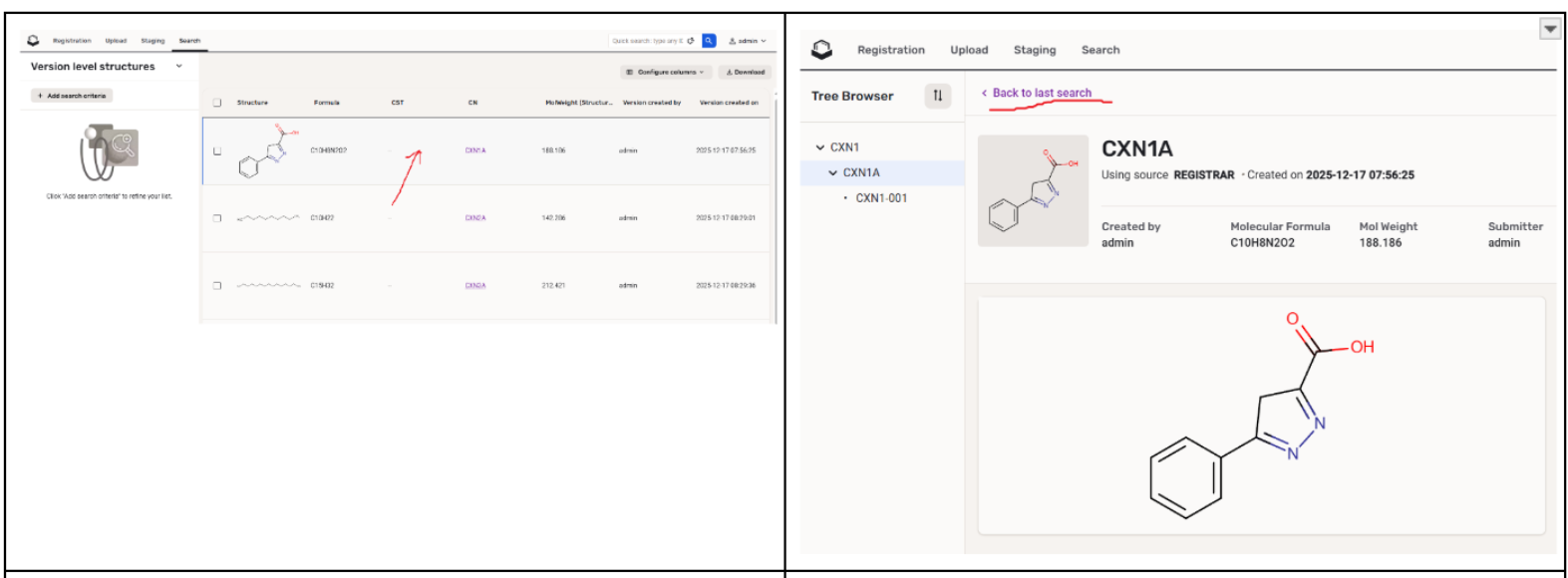
Since CR version 25.1.1 if the user clicks on the ID of a list element from the Search page result the item will be opened in a new tab (the "Back to last search" is NOT present on the Browse page).
 |
|---|
| Search page result: after clicking on an ID, the item is opened in a NEW browser tab |
 |
|---|
| Search page result: after clicking near an ID, the item is opened within the SAME browser tab ("Back to last search" is present) |