Handling Remote Data with Web Service Entity
A web service entity serves as a link to outside databases, allowing to access and use data from online sources directly within IJC views. This capability supports immediate data access without the need for downloading or updating datasets manually. As a result, team members in different locations can work with the same data and communicate results in real time. To sum up, the main advantages are:
- Real-time Access: Instantly updates with the latest data from online databases.
- Saves Space: No need to download bulky datasets, freeing up local storage.
- Boosts Collaboration: Allows team members anywhere to work with the same data.
- Seamless Integration: Works with external data as if it were local.
- Wide Data Access: Connects to a vast array of databases for extensive resources.
Example: Connecting to remote Chembl database
The following example shows how to access and integrate data provided by the Chembl Descriptors Web Service directly within the context of the Pubchem demo grid. This integration enhances the capabilities of Pubchem demo by providing additional chemical descriptor information from an external web service (Chembl).
- Video tutorial on how to set and use Web Service Entity is available here.
- For detailed description of Web Service entity, please navigate here.
-
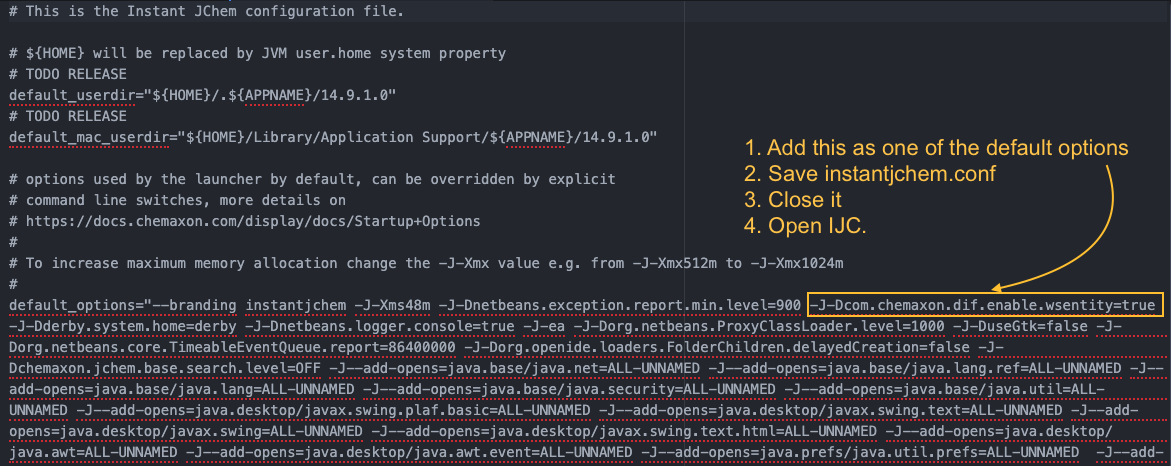
Close IJC if opened. Ensure that the Java property
com.chemaxon.dif.enable.wsentityis set totrue. In order to do so, navigate toetc\instantjchem.confand add-J-Dcom.chemaxon.dif.enable.wsentity=trueas can be seen in the screenshot below.
-
Download ijc-api-examples.zip corresponding to your IJC version and install plugin ijc-api-examples\plugins\com-chemaxon-ijc-wsentity-chembldescriptors.nbm. If you need help with installing plugins in IJC, follow the steps outlined, for example, in Installing Plugins documentation.
-
Start IJC. A new action titled
New Data Tree and Web Service entity (virtual view)will is available. This action can be found in the pop-up menu that appears when you right-click on a schema. Fill in theDisplay Name:. Copy the following configuration in theconfig:box
and clickFinish. -
Click on
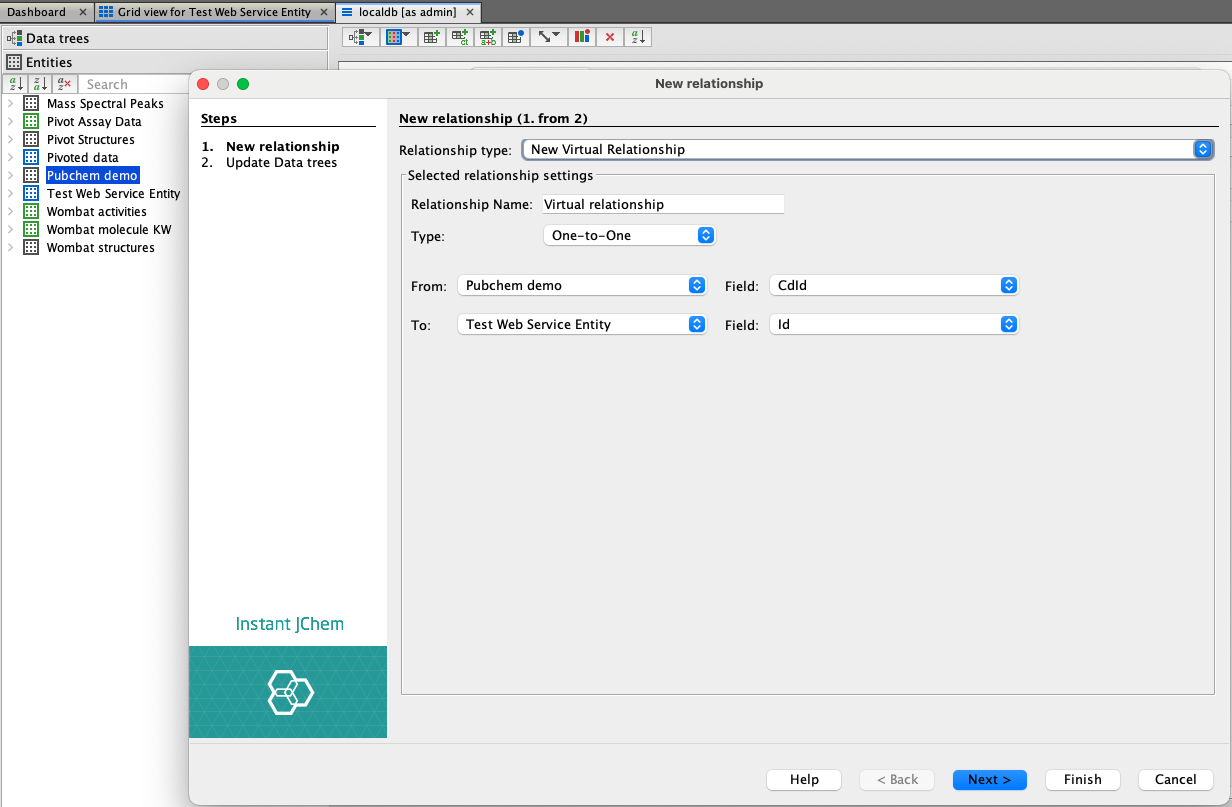
Edit Schemaand navigate toEntitiestab. Once here, right click onPubchem demoentity and chooseNew Relationship.... Here, chooseNew Virtual relationshipand fill in the details as can be seen in the picture below.
-
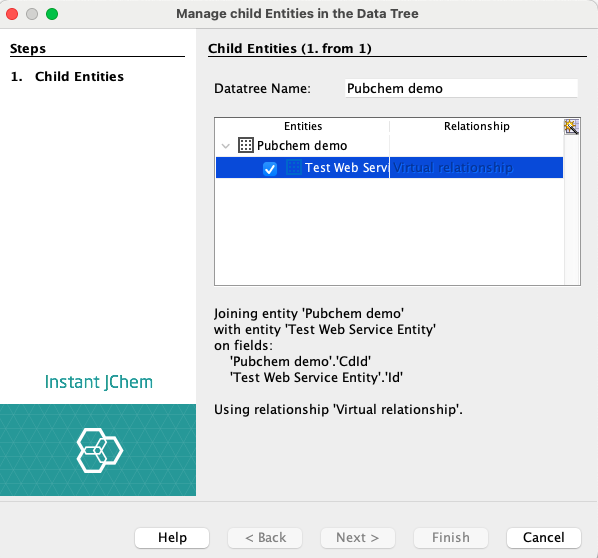
Next step is to add your Web Service entity as a child entity to Pubchem demo. To do this, in
Data Treetab, R-click on Pubchem demo data tree and selectManage Child Entities.... Simply check the Web Service entity as shown in the picture below and clickFinish.
-
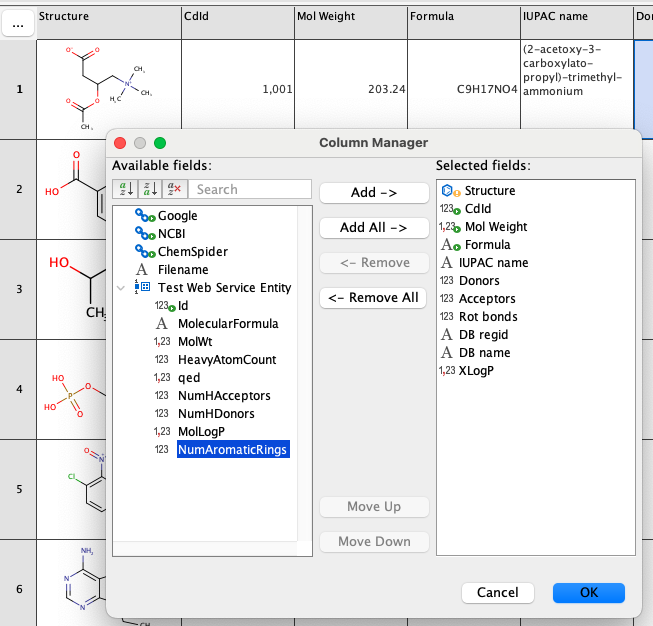
Now, you can add fields from the newly created Web Service to your
Pubchem demo grid view(s).
Should you require a solution precisely tailored to your specific needs, the Instant JChem support team is ready to assist. Contact us via Chemaxon Freshdesk.