Design Hub developer guide - real time plugin templates
Basics
Before digging deeper into the available options, you should be familiar with the basics of the current templating framework: AngularJS. If you feel the need for a refresher, please review the tutorial and pay special attention to interpolation (double curly braces), ng-src attribute of an img, ng-hrefattribute of a link, and the ng-repeat, and ng-if constructs.
These templating constructs will be used to render the contents from your plugin's results. Remember, results are available to the template in scope variable called client.
Example
my-plugin.template.html
<div>
  <p>logD: {{client.data[0].logD.logD}}</p>
  <p># of Ar: {{client.data[0].topologyAnalysis.ring.aromaticRingCount}}</p>
  <p>SFI: {{client.data[0].logD.logD + client.data[0].topologyAnalysis.ring.aromaticRingCount | number:2 }}</p>
</div>
Adding style
Once the content is rendered, you can change its style using plain old CSS definitions in a <style></style> tag. To make sure the rules are specific to this template only, you can add classes as needed.
Example
my-plugin.template.html
<style>
.my-results p {
  margin-bottom: 9px;
}
</style>
<div class="my-results">
  <p>logD: {{client.data[0].logD.logD}}</p>
  <p># of Ar: {{client.data[0].topologyAnalysis.ring.aromaticRingCount}}</p>
  <p>SFI: {{client.data[0].logD.logD + client.data[0].topologyAnalysis.ring.aromaticRingCount | number:2 }}</p>
</div>
Design Hub specific components
Besides the basics, several components were developed to support the typical visualizations used by chemists. Below you can find examples and options for each.
<diff>
Compares 2 numbers and displays an arrow pointing upwards or downwards as appropriate. You can use variables, expressions or fixed values as well to compare.
Usage
Attributes
| Parameter | Type | Description |
|---|---|---|
new |
number or expression | Number to compare. |
base |
number or expression | Number to compare against. |
<larger>
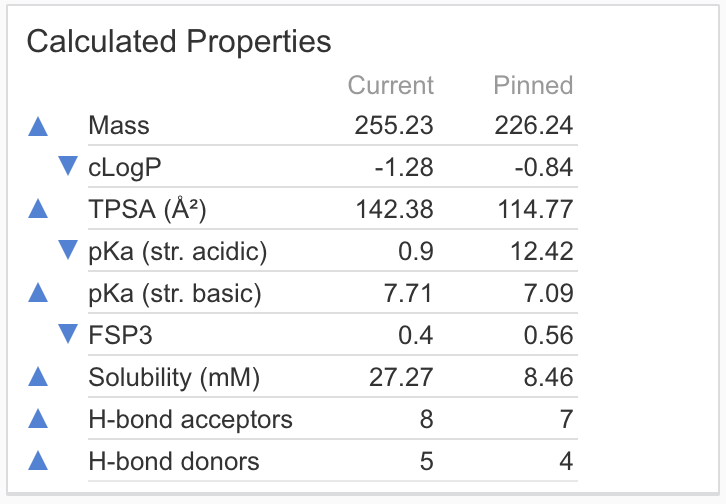
Compares 2 numbers and displays an 15x10 pixel blue upwards arrow if new is larger. You can use variables, expressions or fixed values as well to compare.
Example
Usage
Attributes
| Parameter | Type | Description |
|---|---|---|
new |
number or expression | Number to compare. |
base |
number or expression | Number to compare against. |
<smaller>
Compares 2 numbers and displays a 15x10 pixel blue downwards arrow if new is smaller. You can use variables, expressions or fixed values as well to compare.
Example
Usage
Attributes
| Parameter | Type | Description |
|---|---|---|
new |
number or expression | Number to compare. |
base |
number or expression | Number to compare against. |
<pager>
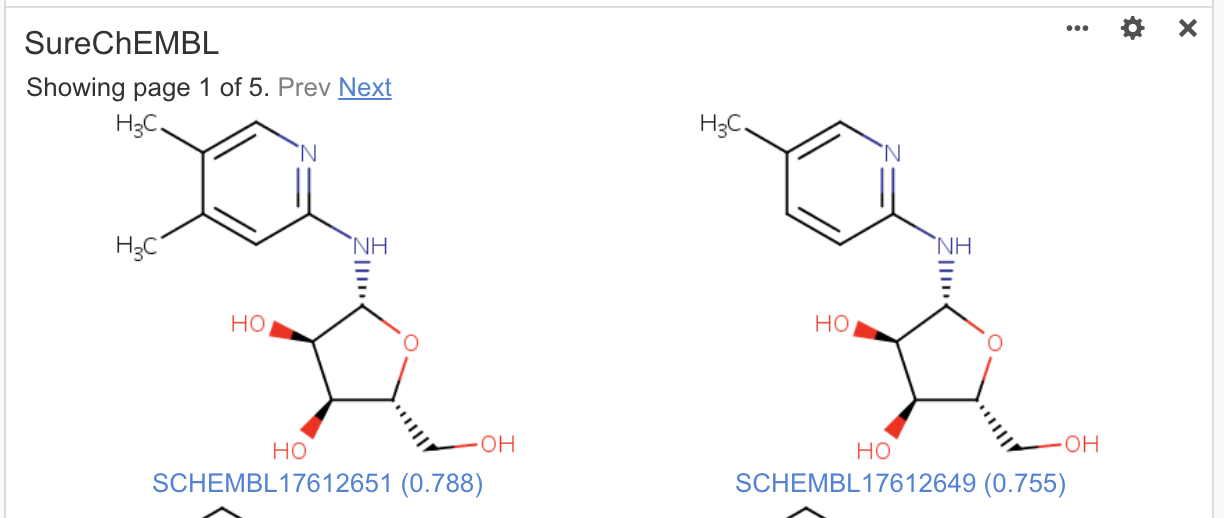
Provides pagination, i.e. Previous and Next buttons to cycle through longer lists.
Example
Usage
Attributes
| Parameter | Type | Description |
|---|---|---|
ng-model |
scope variable | Assignable variable for the current page number. Will be initialized to 1 and as the user navigates through the pages, it will be automatically updated to the current visible page number (i.e. this is not a 0 indexed page number). |
total |
number | Total number of items (i.e. not pages) in the list. This is used to calculate the number of pages available. |
items-per-page |
number | Defines the number of items on a page, used while calculating the total number of pages available. Default: 4Optional |
label |
string | Defines the name of discrete pages on the UI. This is used to override the word "page" to something more appropriate for a given problem, e.g. set or molecules. Default: pageOptional |
[structure]
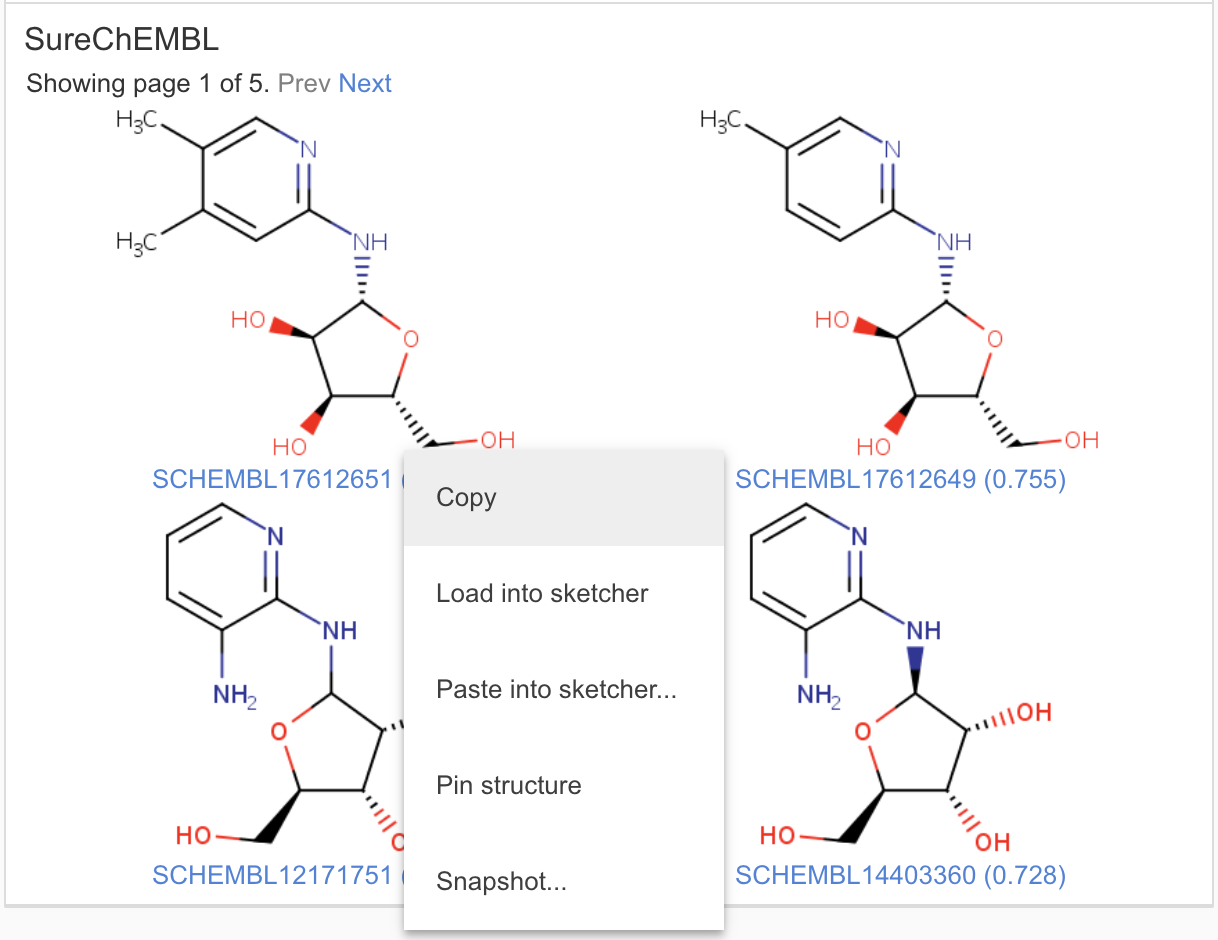
Adds right click menu to an HTML element, with options that interact with the chemical editor.
Example
Usage
<img ng-src="{{item.base64image}}" structure="item.molSource" structure-data="{ID: item.id}" structure-menu-options="copy, load, paste, pin, snapshot"/>
Attributes
| Parameter | Type | Description |
|---|---|---|
structure |
String | Plain text source of the chemical structure in any file format supported by Marvin JS. |
structure-data |
Object | Additional data to attach to the molecule when saving a Snapshot in label-value format. Optional. |
structure-menu-options |
String | Selectively enable or disable options from the right click menu. Available options: copy, load, paste, pin, snapshot.Default: display all available options. Optional. |
[use-structure]
Adds a left click action to an HTML element, similar to the above listed structure directive, with options that interact with the chemical editor.
Usage
Attributes
| Parameter | Type | Description |
|---|---|---|
use-structure |
String | Action to perform when clicking on the element. Available options: copy, load, paste, pin, snapshot |
structure |
String | Plain text source of the chemical structure in any file format supported by Marvin JS. |
<threedee-ngl>
Creates a WebGL viewer for PDB and SD files with typical visualizations and builtin options using the NGL library. <threedee-ngl> is a wrapper element while the <protein-ngl> and <ligand-ngl> elements below are used to define chemical content.
Usage
<threedee-ngl>
  <protein-ngl name="client.pdbCode" pdb="client.pdbFile"></protein-ngl>
  <ligand-ngl name="'Idea'" molecule="client.aligned" color="'cyan'"></ligand>
  <ligand-ngl name="client.ligandCode" molecule="client.reference" color="'orange'" zoom-on-change="true"></ligand>
</threedee-ngl>
Attributes
None.
<protein-ngl>
Configures and loads a PDB formatted biomolecule into the threedee-ngl viewer. Must be used within a <threedee-ngl> component.
Usage
<threedee-ngl>
  <protein-ngl name="client.pdbCode" pdb="client.pdbFile" visible-components="['Cartoon']"></protein-ngl>
  <ligand-ngl name="'Idea'" molecule="client.aligned" color="'cyan'"></ligand-ngl>
  <ligand-ngl name="client.ligandCode" molecule="client.reference" color="'orange'" zoom-on-change="true"></ligand-ngl>
</threedee-ngl>
Attributes
| Parameter | Type | Description |
|---|---|---|
pdb |
string | Plain text source of the protein in PDB format. |
name |
string | Human friendly label for the protein. If none provided, a sequential ID is generated. Optional. |
visible-components |
array of strings | List of components to render by default. Valid options are: Cartoon, Surface, Pocket, Contact, Key residues, Additives, Lipids, Sugar, Ions, Water.Default: "Pocket", "Contact", "Key residues", "Water" |
<ligand-ngl>
Configures and loads an SDF formatted small molecule into the threedee-ngl viewer. Must be used within a <threedee-ngl> component.
Usage
<threedee-ngl>
  <ligand-ngl ng-repeat="item in client.molecules" molecule="item.mol" name="item.label" color="item.color" zoom-on-change="$index === 0"></ligand>
</threedee-ngl>
Attributes
| Parameter | Type | Description |
|---|---|---|
molecule |
string | Plain text source of the structure in SDF/MOLV2000 format. |
name |
string | Human friendly label for this structure. If none provided, a sequential ID will be generated. Optional. |
color |
string | CSS style color code for the carbon atoms, used to highlight this structure. Default: grey. |
zoom-on-change |
boolean | Toggle whether the scene should zoom to this structure when it's initialized or when this structure changes. Default: false. |
visible |
boolean | Toggle for the default visibility of this structure as the scene is initialized. Default: true |
calculate-contact |
boolean | Marks this structure for non-covalent interaction (i.e. contact) calculation, and the geometric center of this structure will be used to set up the binding site / key residues related automatic clipping. Default: false. If multiple ligands are marked with true, the last in the DOM will have effect. |