Customizing the Context Menu
Personal Customization of the Context Menu
Hide a Button
-
Open the
JChemExcelContextMenu.xmlfile for edition. The default folder is the following:C:\Users\<Current User>\AppData\Roaming\Chemaxon\JChem for Excel -
Select a menu item that you want to hide from the context menu, for example, ** Add/Edit** and set its visibility to
FALSE. -
Save the modified XML file as
JChemExcelContextMenu_Custom.xml. The default folder is the following:C:\Users\<Current User>\AppData\Roaming\Chemaxon\JChem for Excel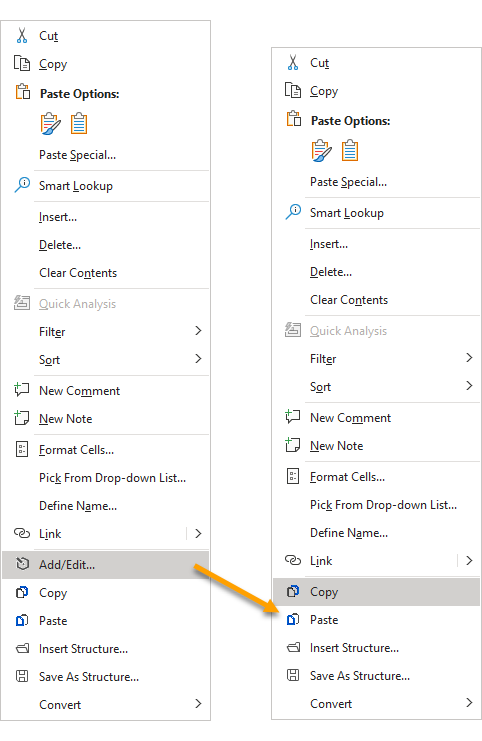
Add a Button
-
Add some new actions, for example,
ImportFileActionto the context menu. Add the new actions as new rows to a selected section of theJChemExcelContextMenu.xmlfile. -
Save the modified XML file as
JChemExcelContextMenu_Custom.xml. The default folder is the following:C:\Users\<Current User>\AppData\Roaming\Chemaxon\JChem for Excel -
Paste a
ImportFileAction.pngfile into theImagesfolder to provide an icon for the new button. The default folder is the following:C:\Users\<Current User>\AppData\Roaming\Chemaxon\JChem for Excel\Images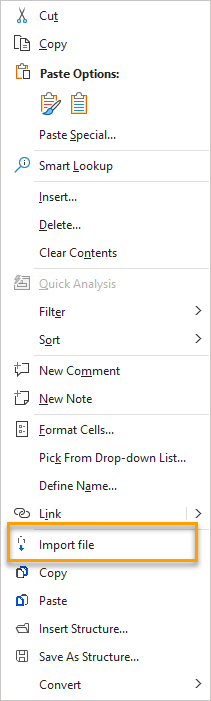
The ImportFileAction.png file already exists in the Images folder.
The original JChemExcelContextMenu.xml file is loaded automatically instead of the customized file when starting Microsoft Excel if there is any problem with the customization.
Corporate Level Customization of the Context Menu
The modifications described above must be done in the original JChemExcelContextMenu.xml file and it must be re-packed in the installer.