Add a PostgreSQL Connection in JChem for Office
In the case of PostgreSQL databases, it is possible to connect to tables and views.
It is possible to connect to PostgreSQL databases through a JChem Web Service.
To add a PostgreSQL connection, follow the steps below.
-
Click the Import ** ribbon button under the **Database group.

-
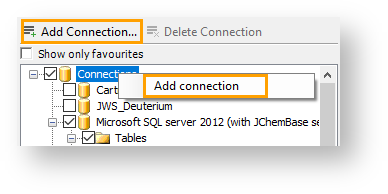
Click Add Connection or right-click the Connections ** root node and select **Add Connection from the context menu. By default, the Save Password and the Encrypt Password checkboxes are ticked.
-
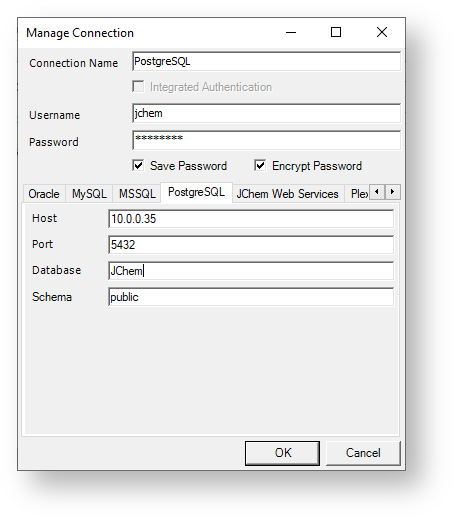
Select the PostgreSQL ** tab on the **Manage Connections form.
-
Enter the Connection Name.
-
Enter the User Name ** and the **Password.
-
Enter the hostname or IP address where the PostgreSQL database can be found.
-
Enter the port number.
-
Enter the database name of the PostgreSQL database.
-
Specify the schema name, public is used by default. The schema name is stored in
Connections.xml, which can be found underC:\Users\<current user>\AppData\Roaming\Chemaxon\JChem for Excel.
-
Click **OK ** to save the connection.