Resize Structures
The size of structures is limited by Excel, it cannot be increased above this limit.
When resizing cells in Excel, the size of the structures are changing with the cells, if the Options > Structures > Formatting > Structure Size is set to Fit to Cell (this is the default value).
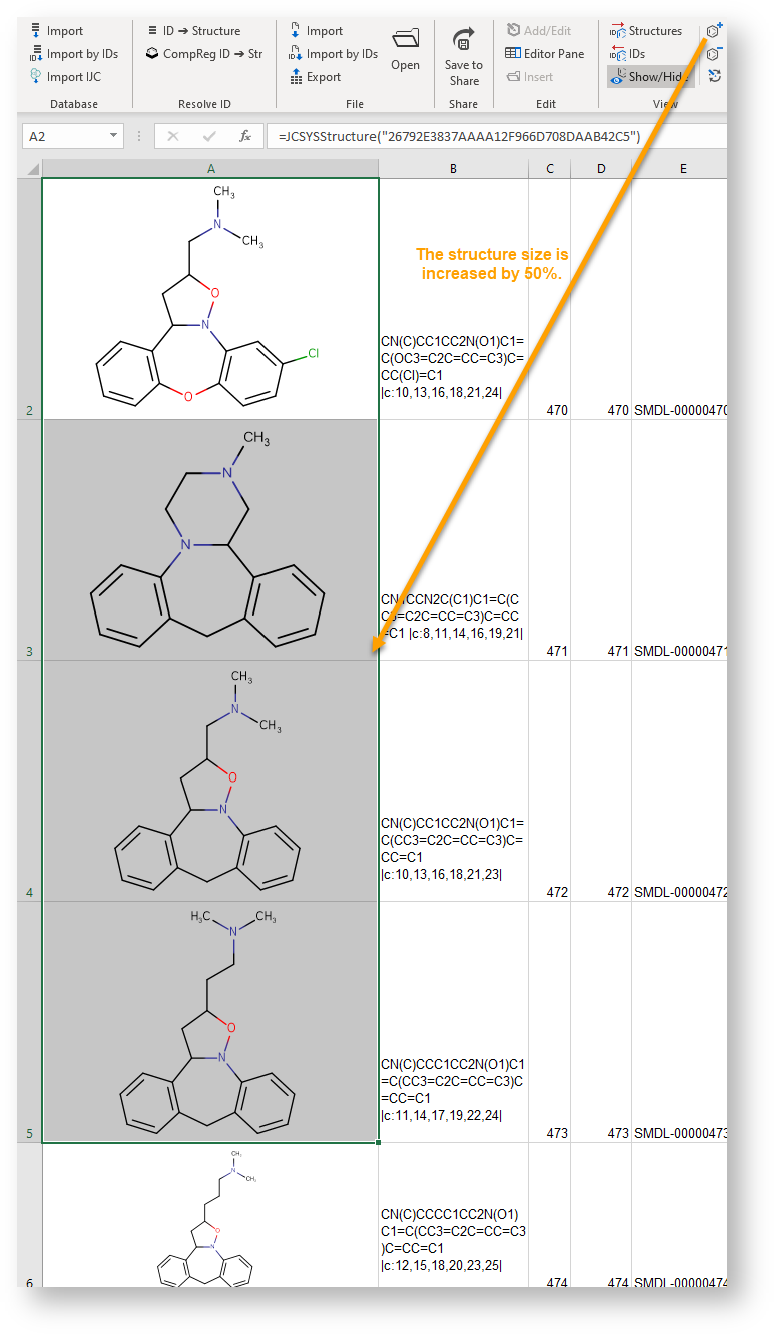
Increase Structure Size
To increase the structure sizes, click the Increase Structure Size button. Each click increases the structure size by 10%.
- When Options > Structures > Formatting > Structure Size is set to
Fit to Cell, the button only increases structure size in the selected cells.
- When Options > Structures > Formatting > Structure Size is set to
Fixed Scale, the button increases size for all structures.
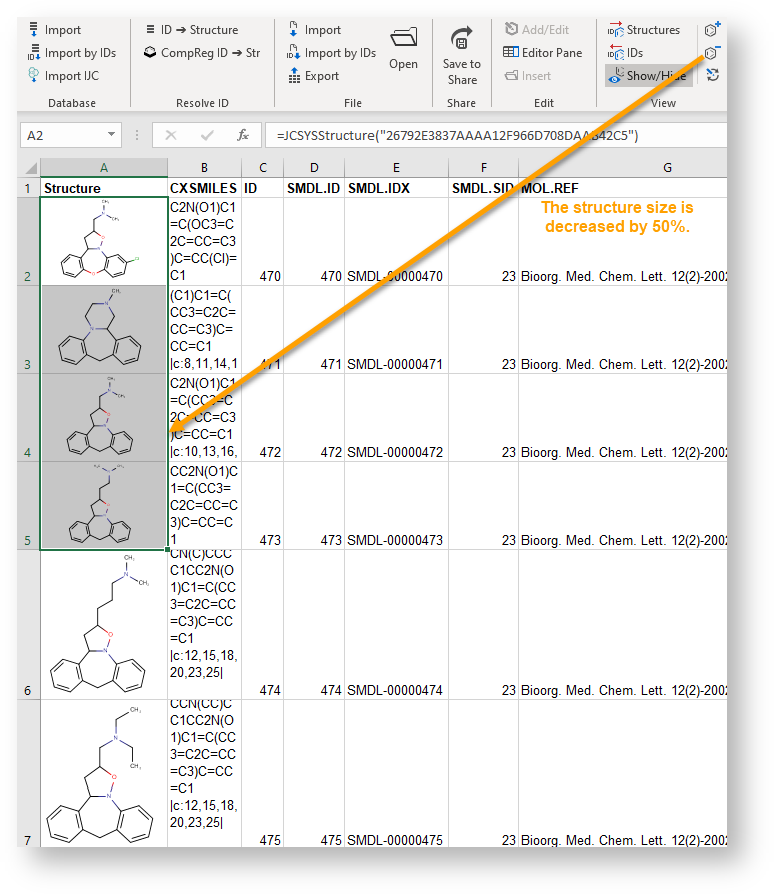
Decrease Structure Size
To decrease the structure sizes, click the Decrease Structure Size button. Each click decreases the structure size by 10%.
- When Options > Structures > Formatting > Structure Size is set to
Fit to Cell, the button only increases structure size in the selected cells.
- When Options > Structures > Formatting > Structure Size is set to
Fixed Scale, the button increases size for all structures.
Redraw Structures
If parts of a structure are drawn outside of its cell (sometimes happen when resizing cells), use the Redraw button to resize and reposition the structure into the cell.
Resize Structures to the Default Size in Selection
It is possible to resize structures in the selected cells to the default size by using the ResizeStructuresToDefaultInSelectionAction.
This action is not available by default but it can be added to a customized context menu or ribbon. See the User Interface Customization section for details.