Customizing the Ribbon
There are two different menu constructions in the ribbon:
- Standard: For users who just started to use the application and want to use very basic functions.
- Advanced: For users who are already familiar with the application and would like to use advanced features or would like to customize it specifically to their needs.
You can insert additional buttons and functions to the ribbon by editing the JChemExcelRibbon.xml file and save it as JChemExcelRibbon_Custom.xml.
Standard and Advanced menu sets cannot be used together with a customized XML file.
It is possible to use Chinese and Japanese ribbon sets with a customized XML file. Please, contact jc4o-support@chemaxon.com regarding this topic.
Customize the Advanced Ribbon
Hide a Button
-
Open the
JChemExcelRibbon.xmlfile for editing. The default folder is the following:C:\Users\<Current User>\AppData\Roaming\Chemaxon\JChem for Excel -
Select some buttons which you want to hide from the ribbon, for example,
ConvertFromSMILESToStructureActionset its visibility toFALSE.<?xml version="1.0" encoding="UTF-8"?> <box id="Structure.Convert.Box.From" boxStyle="vertical"> <button onAction="ConvertFromSMILESToStructureAction" id="ConvertFromSMILESToStructureAction" label="From SMILES" image="ConvertFromSMILESToStructureAction.png" getImage="GetImage" screentip="Convert SMILES string to structure." size="normal" visible="false" getEnabled="OnIsEnabled" /> <button onAction="ConvertFromShapeAction" id="ConvertFromShapeAction" label="From Image/OLE" image="ConvertFromImage.png" getImage="GetImage" screentip="Convert from any type of Excel shape to structure." size="normal" visible="true" getEnabled="OnIsEnabled" /> <button onAction="ConvertFromTextToStructureAction" id="ConvertFromTextToStructureAction" label="From 'any' Text" image="ConvertFromText.png" getImage="GetImage" screentip="Convert cell text to structure." size="normal" visible="true" getEnabled="OnIsEnabled" /> </box> -
Save the modified XML file as
JChemExcelRibbon_Custom.xml. The default folder is the following:C:\Users\<Current User>\AppData\Roaming\Chemaxon\JChem for Excel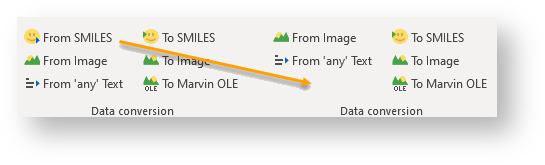
Add a Button
-
Add some new actions, for example,
ConvertToIUPACNameActionto the ribbon. Add the new actions as new rows to a selected section of theJChemExcelRibbon.xmlfile.<?xml version="1.0" encoding="UTF-8"?> <box id="Structure.Convert.Box.From" boxStyle="vertical"> <button onAction="ConvertToIUPACNameAction" id="ConvertToIUPACNameAction" label="To IUPAC" image="IUPAC.png" getImage="GetImage" screentip="Convert structure to IUPAC." size="normal" visible="true" getEnabled="OnIsEnabled" /> <button onAction="ConvertFromShapeAction" id="ConvertFromShapeAction" label="From Image/OLE" image="ConvertFromImage.png" getImage="GetImage" screentip="Convert from any type of Excel shape to structure." size="normal" visible="true" getEnabled="OnIsEnabled" /> <button onAction="ConvertFromTextToStructureAction" id="ConvertFromTextToStructureAction" label="From 'any' Text" image="ConvertFromText.png" getImage="GetImage" screentip="Convert cell text to structure." size="normal" visible="true" getEnabled="OnIsEnabled" /> </box> -
Paste an
IUPAC.pngfile into the Images folder to provide an icon for the new buttons. The default folder is the following:C:\Users\<Current User>\AppData\Roaming\Chemaxon\JChem for Excel\Images -
Save the modified XML file as
JChemExcelRibbon_Custom.xml. The default folder is the following:C:\Users\<Current User>\AppData\Roaming\Chemaxon\JChem for Excel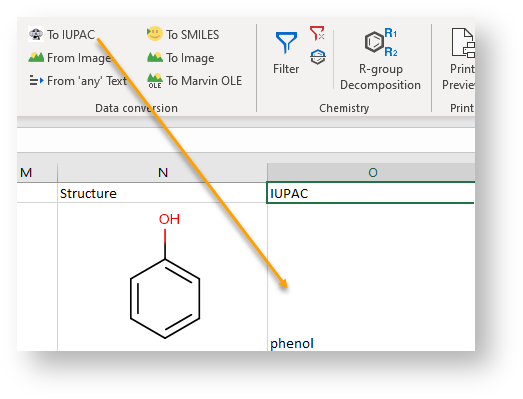
The original JChemExcelRibbon.xml file is loaded automatically instead of the customized file when starting Microsoft Excel if there is any problem with the customization.
Personal Customization of the Ribbon in Case of Standard Menu Set
The process is the same as in case of the advanced menu set, but the location of the customized file is different:
C:\Users\<Current User>\AppData\Roaming\Chemaxon\JChem for Excel\Basic
Corporate Level Customization of the Ribbon
The modifications described above must be done in the original JChemExcelRibbon.xml file and it must be re-packed in the installer.