Disable and Re-enable JChem for Office Add-Ins
In some rare cases when an error occurs during the usage of JChem for Excel or JChem for Office, the add-ins may become disabled and have to be re-enabled manually again.
-
Open Excel, Word, PowerPoint, or Outlook, and click File > Options.
-
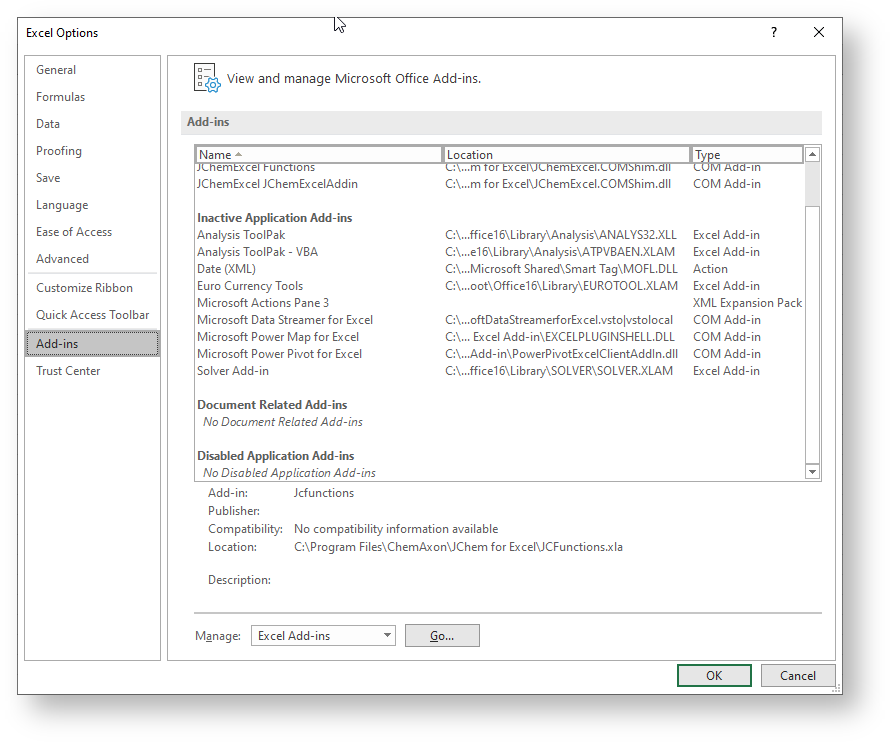
Navigate to the **Add-ins ** tab.
-
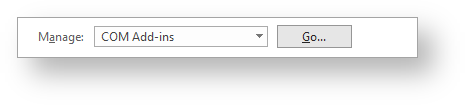
Chose COM Add-ins from the Manage ** drop-down list and click **Go.
-
To load a COM Add-in , tick the checkbox next to the add-in that you want to load, and click OK. The following add-ins are available:
- JChem For Word
- JChem For PowerPoint
- JChem For Outlook
1
2
3
> {info}
> If the add-in that you want to use is not listed in the  **Add-ins available**  box, then click  **Add**  and locate the add-in.
>
-
To unload a COM Add-in , do one of the following:
-
In the Add-ins available box, clear the checkbox next to the add-in that you want to unload, and then click OK.
1
2
3
> {info} > Note This unloads the add-in from memory but keeps its name in the list of available add-ins. It does not delete the add-in from your computer. > -
To remove a COM Add-in from the list of available add-ins and to delete the add-in from your computer, click its name in the Add-ins available box, and then click Remove.
-