Installation Guide
Interactive Installers for Different Platforms
Starting the Interactive Installer
How to install CC/cHemTS as a service
How to configure
How to start
How to restart
How to use the installed application
Interactive Installers for Different Platforms
Windows
- exe installer: interactive installer that lets you choose the installation directory and which parts of Compliance Checker do you want to install
- zip installer: you can unpack Compliance Checker and use it with installed 64 bit Java
Unix/Linux
- sh installer: interactive installer that can be run with/without GUI
- deb installer: default installer for Debian like systems
- rpm installer: default installer for RedHat like system
- tar.gz installer: you can unpack Compliance Checker and use it with installed Java
Mac OS
- dmg installer: interactive installer
Starting the Interactive Installer
The interactive installer will guide you through the following steps:
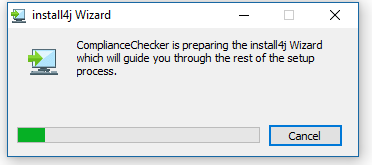
It unpacks the installer and its parts:
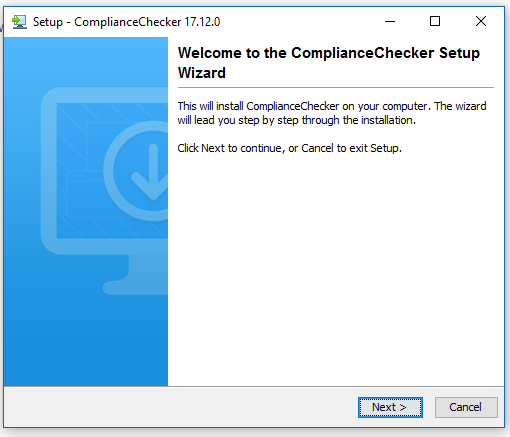
Short description of installation:
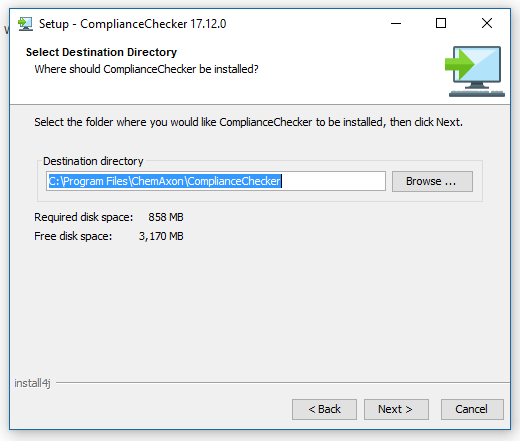
choose installation folder
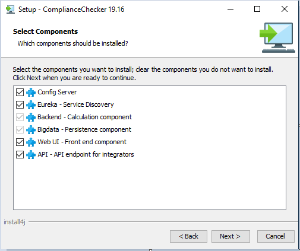
choose which components to install (you need all if you only install CC to a single server)
edit Name in the Start menu (Windows only)
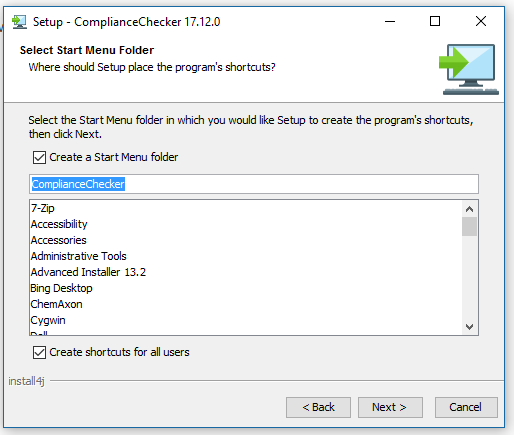
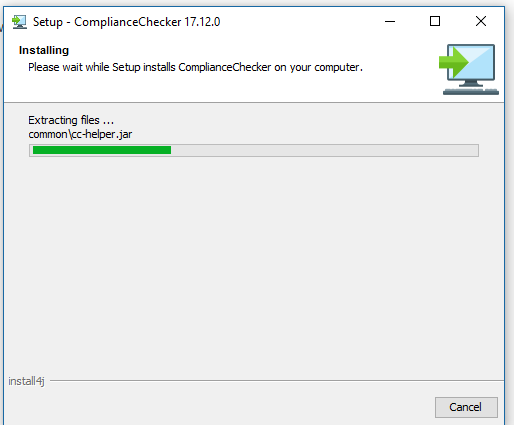
installs the files:
when the install is completed:
New folders created in the installation directory
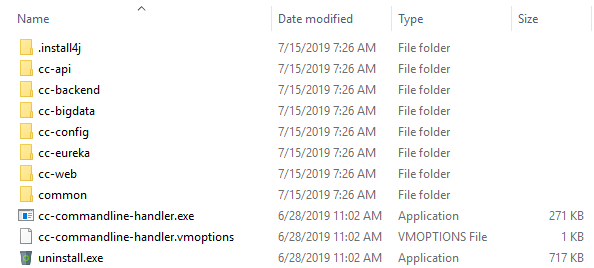
.install4j (folder)
This contains all installation details! PLEASE DO NOT DELETE IT.
cc-backend (folder)
- cc-backend.war
This war file is the backend application.
- cc-backend.(exe/sh)
This is the service starter of cc-backend.
- cc-backend.vmoptions
You can set any JVM options for cc-backend service.
- run-cc-backend.(exe/sh)
This little starter runs cc-backend as a foreground application.
- run-cc-backend.vmoptions
You can set any JVM options to run-cc-backend executable.
- application.properties
You can set any application properties specific to this service only (like server port, etc).
- bootstrap.properties
Settings that are needed to be set before application start.
cc-bigdata (folder)
- cc-bigdata.war
This war file is the bigdata application.
- cc-bigdata.(exe/sh)
This is the service starter of cc-bigdata.
- cc-backend.vmoptions
You can set any JVM options for cc-bigdata service.
- run-cc-bigdata.(exe/sh)
This little starter runs cc-bigdata as a foreground application.
- run-cc-bigdata.vmoptions
You can set any JVM options to run-cc-bigdata executable.
- application.properties
You can set any application properties specific to this service only (like server port, etc).
- bootstrap.properties
Settings that are needed to be set before application start.
cc-api (folder)
- cc-api.war
This war file is the api application.
- cc-api.(exe/sh)
This is the service starter of cc-api.
- cc-api.vmoptions
You can set any JVM options for cc-api service.
- run-cc-api.(exe/sh)
This little starter runs cc-api as a foreground application.
- run-cc-api.vmoptions
You can set any JVM options to run-cc-api executable.
- application.properties
You can set any application properties specific to this service only (like server port, etc).
- bootstrap.properties
Settings that are needed to be set before application start.
cc-web (folder)
- cc-web.war
This war file is the web application.
- cc-web.(exe/sh)
This is the service starter of cc-web.
- cc-web.vmoptions
You can set any JVM options for cc-web service.
- run-cc-web.(exe/sh)
This little starter runs cc-web as a foreground application.
- run-cc-web.vmoptions
You can set any JVM options to run-cc-web executable.
- application.properties
You can set any application properties specific to this service only (like server port, etc).
- bootstrap.properties
Settings that are needed to be set before application start.
cc-eureka (folder)
- cc-eureka.jar
This jar file is the eureka application.
- cc-eureka.(exe/sh)
This is the service starter of cc-eureka.
- cc-eureka.vmoptions
You can set any JVM options for cc-eureka service.
- run-cc-eureka.(exe/sh)
This little starter runs cc-eureka as a foreground application.
- run-cc-eureka.vmoptions
You can set any JVM options to run-cc-eureka executable.
- application.properties
You can set any application properties specific to this service only (like server port, etc).
- bootstrap.properties
Settings that are needed to be set before application start.
cc-config (folder)
- config (folder)
application.properties
- This file
(cc-config/config/application.properties)includes ALL settings that are propagated to every instance of compliance checker. - cc-config.jar
This jar file is the config application.
- cc-config.(exe/sh)
This is the service starter of cc-config.
- cc-config.vmoptions
You can set any JVM options for cc-config service.
- run-cc-config.(exe/sh)
This little starter runs cc-config as a foreground application.
- run-cc-config.vmoptions
You can set any JVM options to run-cc-config executable.
- application.properties
You can set any application properties specific to this service only (like server port, etc).
- bootstrap.properties
Settings that are needed to be set before application start.
common (folder)
- This contains a little helper application
- cc-commandline-handler.(exe/sh)
This program is a little helper application.
- cc-commandline-handler.vmoptions
This file contains any JVM options for cc-commandline-handler application.
- uninstall.(exe/sh)
This is the uninstaller of Compliance Checker.
How to install CC/cHemTS as a service
Run command
- cc-commandline-handler install
Windows
After install you can set
- autostart
- running user
- recovery actions
in Windows Services.
Unix/Linux
In /etc/systemd/system edit the corresponding .service file to set
- autostart
- running user
- recovery actions
How to configure
- Set your configuration options in the cc-config/config/application.properties file.
How to start
The easiest way is to run cc-commandline-handler that has the following options:
- help
*Prints important information about the * cc-commandline-handler.
- run
Runs all cc services as foreground applications. (This is the default.)
- start
Starts all cc services as background applications.
- status
Prints status information about all cc services that were started.
- stop
Stops all cc services that were started.
- install
Installs all cc services as system services.
- uninstall
Uninstalls previously installed cc system services.
How to restart
Run
- cc-commandline-handler stop
- cc-commandline-handler start
How to use the installed application
When the application is running it can be used on
localhost:8080/cc-web/
When the application is running documentation for the integration endpoints (Swagger UI) can be accessed here:
localhost:8066/cc-api/
System status can be monitored on
localhost:8761/