User guide
Trainer Engine offers 3 interfaces:
- Trainer Engine graphical user interface to build, validate and compare models for computational chemists
- Trainer Engine REST API for integration and automation
- Playground to run interactive predictions
The generic workflows are summarized in this page:
Trainer workflows
Trainer Engine graphical user interface
Train new models
To start model training or prediction use the "New run" button

1) Upload the input file.

- Supported file type: sdf
- Mandatory field: an sdf field with labeled data
- Previously uploaded sdf files are available via clicking on "Past Uploads"
2) Select Observed value field
- Observed data is mandatory for training. After the sdf is uploaded, the identified fields are listed automatically.
- Classification data format: integers (0, 1, 2)
- Labels can be added using the following syntax: Integer:"Textlabel". Example: “ 0:SAFE” and “1:TOXIC”.
- In case of multiple classes, no statistics are calculated.
- Regression value format: numeric field
- Fails if string (like “Nan”, “NoData”) is present in the observed data.
3) Add target name
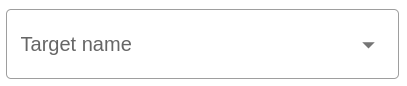
Target name is used to tag or classify models. Target name can be typed in or selected from a pre-defined list of values. Target name is also used during automatic name generation.
4) Configure Descriptor and Training
Configurations are defined in json format, but comment enriched hjson is also accepted. It is recommended to check the example configuration files first. Detailed description is available in the detailed configuration page Trainer configuration.
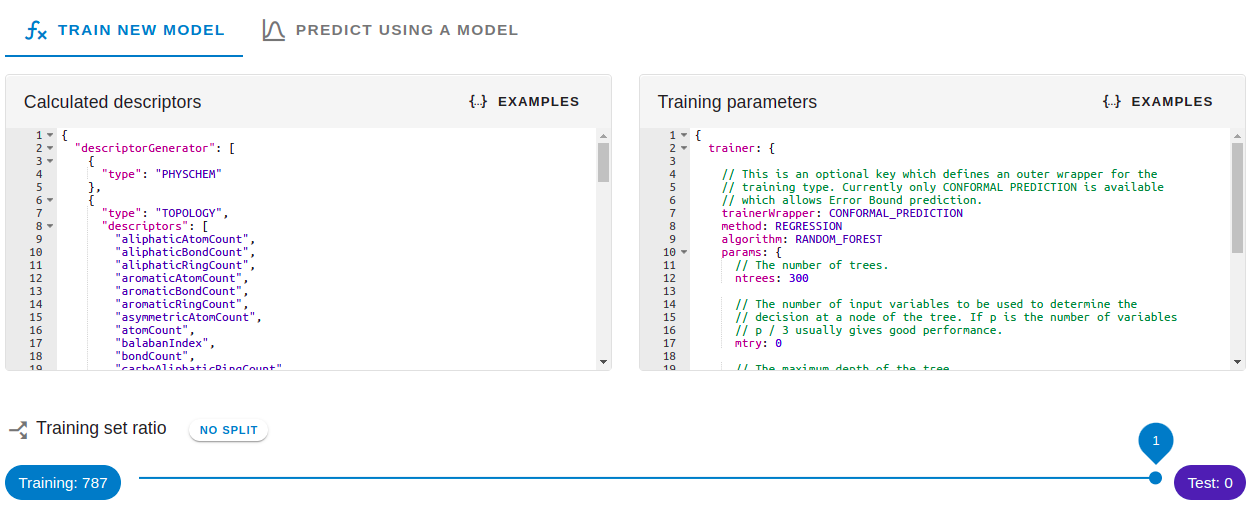
Calculated descriptors field describes the standardization and feature generation.
Training parameter fields configures
- error prediction (Conformal Prediction)
- to activate conformal prediction add the "trainerWrapper": "CONFORMAL_PREDICTION" row from the example configuration
- conformal prediction is currently available for Random Forest algorithms only
- applicability domain
- applicability domain can be configured to display observed data, structure and similarity value independently for all algorithms
- model type (classification or regression)
- algorithm specific hyper-parameters
- classification type: Logistic regression, Support Vector Model (SVM), Random Forest, Gradient Tree Boost
- regression type: linear regression, Support Vector Regression (SVR), Random Forest, Gradient Tree Boost
5) Set Split

If the split ratio is specified (split <1) the input set is randomly spitted to training and test sets. These generated subsets are available in "Past uploads". Training is done on the training set and the test set is subsequently predicted with the trained model. Accuracy statistics are automatically calculated on both training and test sets.
6) Name the run

Auto-generated name includes target name, time stamp, algorithm and model type.
Prediction run
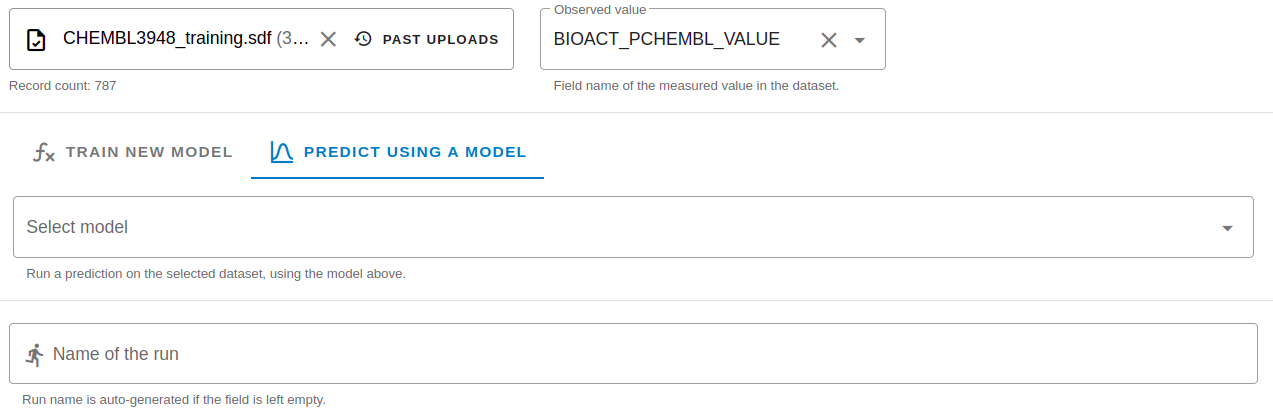
In case of prediction run an existing model is executed on the input set. In the case of prediction run, the Observed data field is optional. If Observed data is present in the input and selected, corresponding accuracy statistics are calculated automatically.
Managing runs on the Runs page
Job life cycle
- Available statuses: running, waiting, success, waiting, failed, canceled.
- Jobs undergo parallelization process to utilize the available CPU resources.
- Only one training job is in running state. Subsequently submitted training runs are waiting until previous training job has finished, or they are canceled. Prediction jobs are running in parallel to training jobs.
- Jobs can be canceled in WAITING or RUNNING state.
- Jobs can be archived. Archived runs are not visible, but persists in the system.
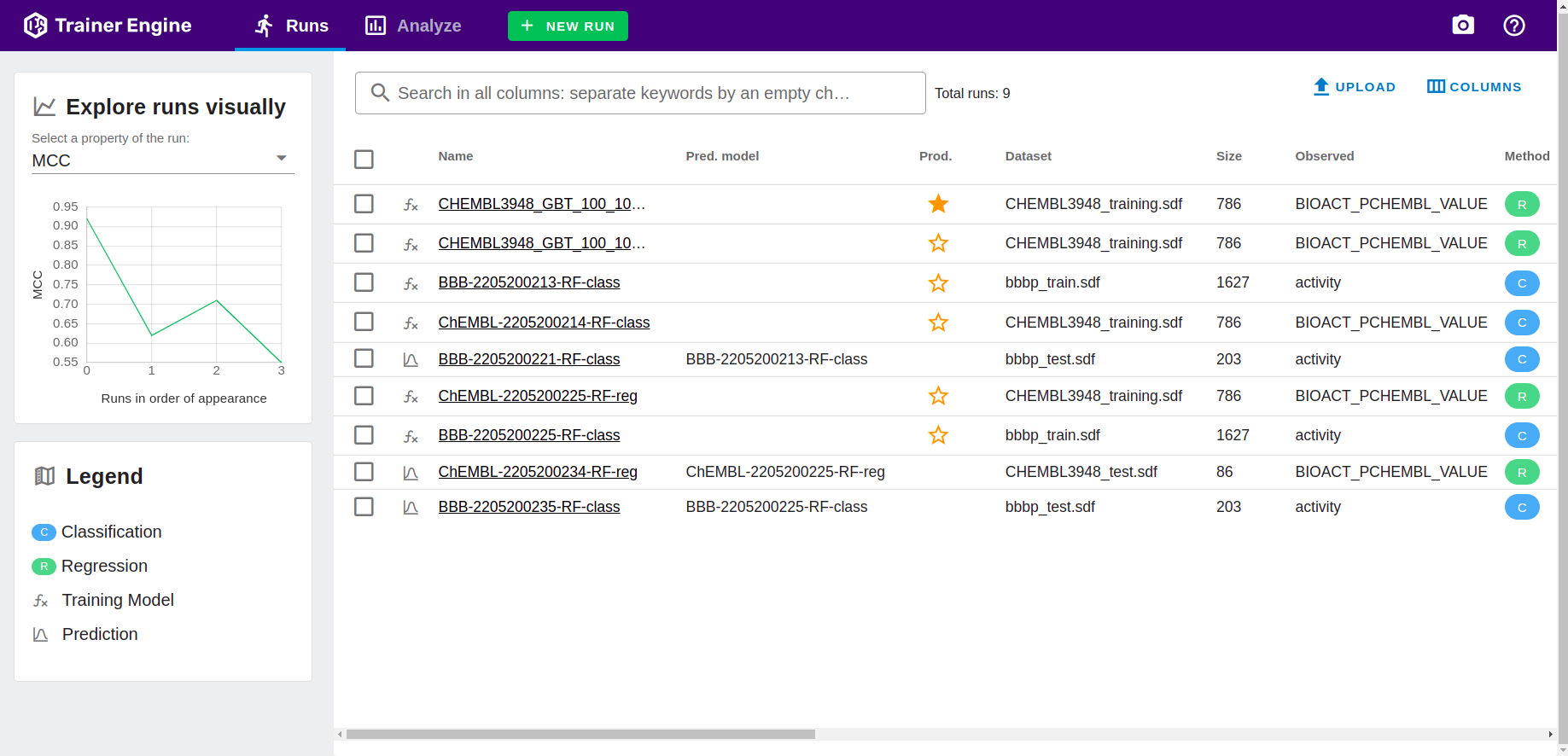
Runs page provides a browser over the previous runs.
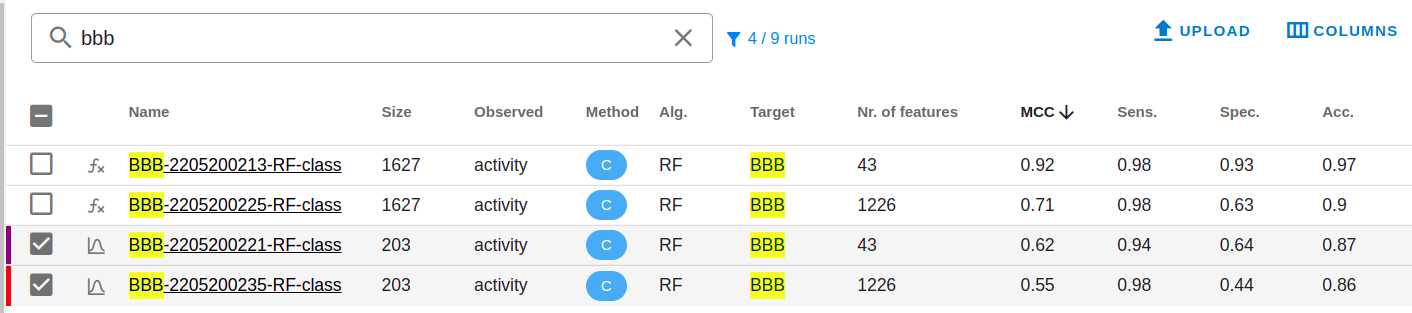
- Selection adds runs for Analyze page.
- Simple text based search can be executed to narrow down cases.
- Selection activates color coding for analysis. The coloring scheme is based on the execution order.
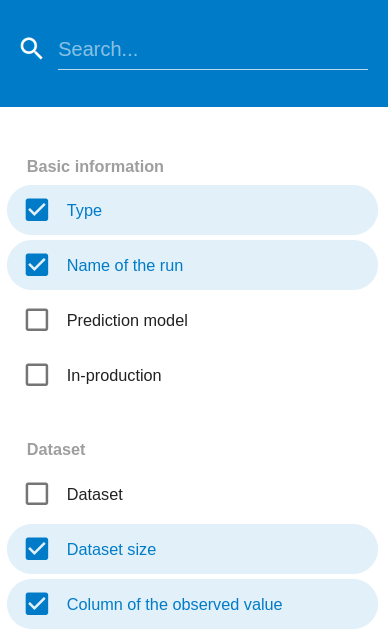
- Columns menu offers all available filed to configure visibility.
- Sorting based on a column value can be activated by clicking on the column header.
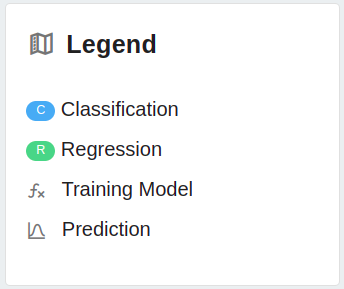
- Classification, Regression, Training and prediction runs are symbolized with different icons. The corresponding text can be used as search criteria.
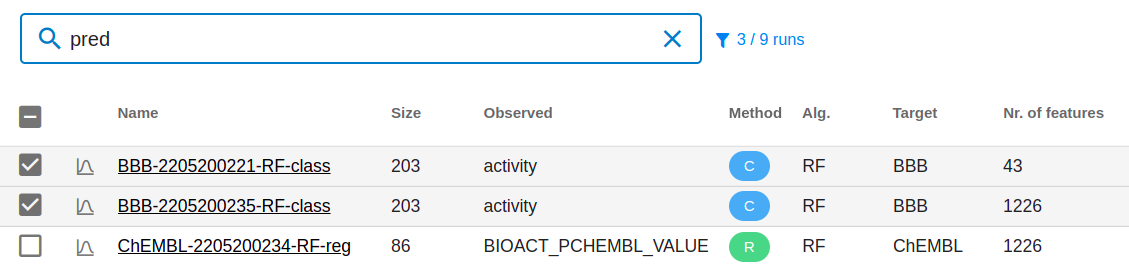
Example: filtering Runs table for "prediction" runs.
Details page
Underlined run name provides a link to the corresponding details page.
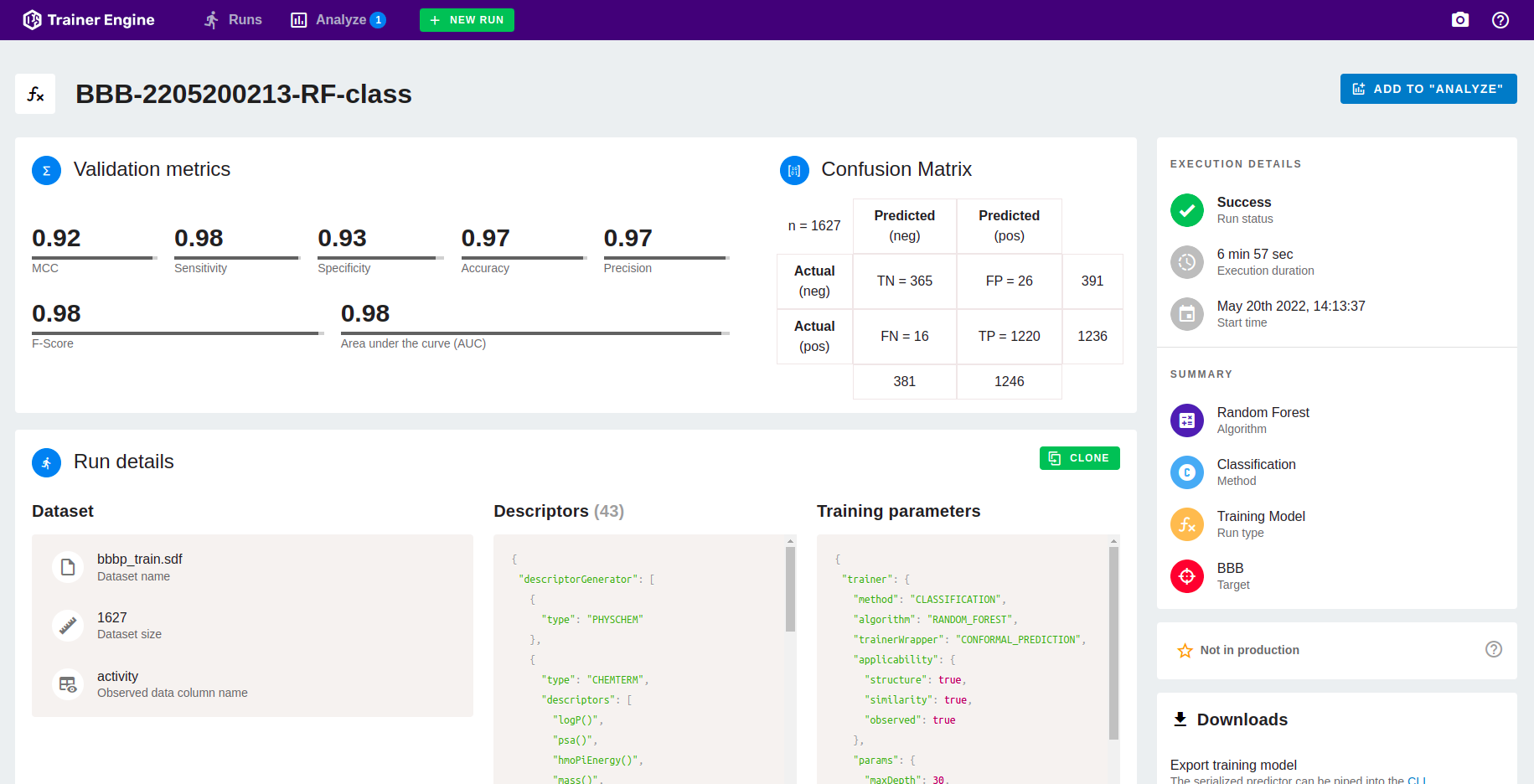
The run detail page summarizes all the data related to a job.
- Validation metrics
- In case of regression: Observed histogram, Binned delta distribution
- Execution Details (status, duration, start time)
- Dataset (input file, data set size, activity field name)
- Descriptor and Training parameters
- Downloads including input file and predicted values
- In case of ensemble tree methods (RF, GTB) feature importance
- Management functions:
- Rename run
- Set production
- Archive run
- Add to analyze page
- Log information
Analyze
Cases selected on the Runs page are available in Analyze page.
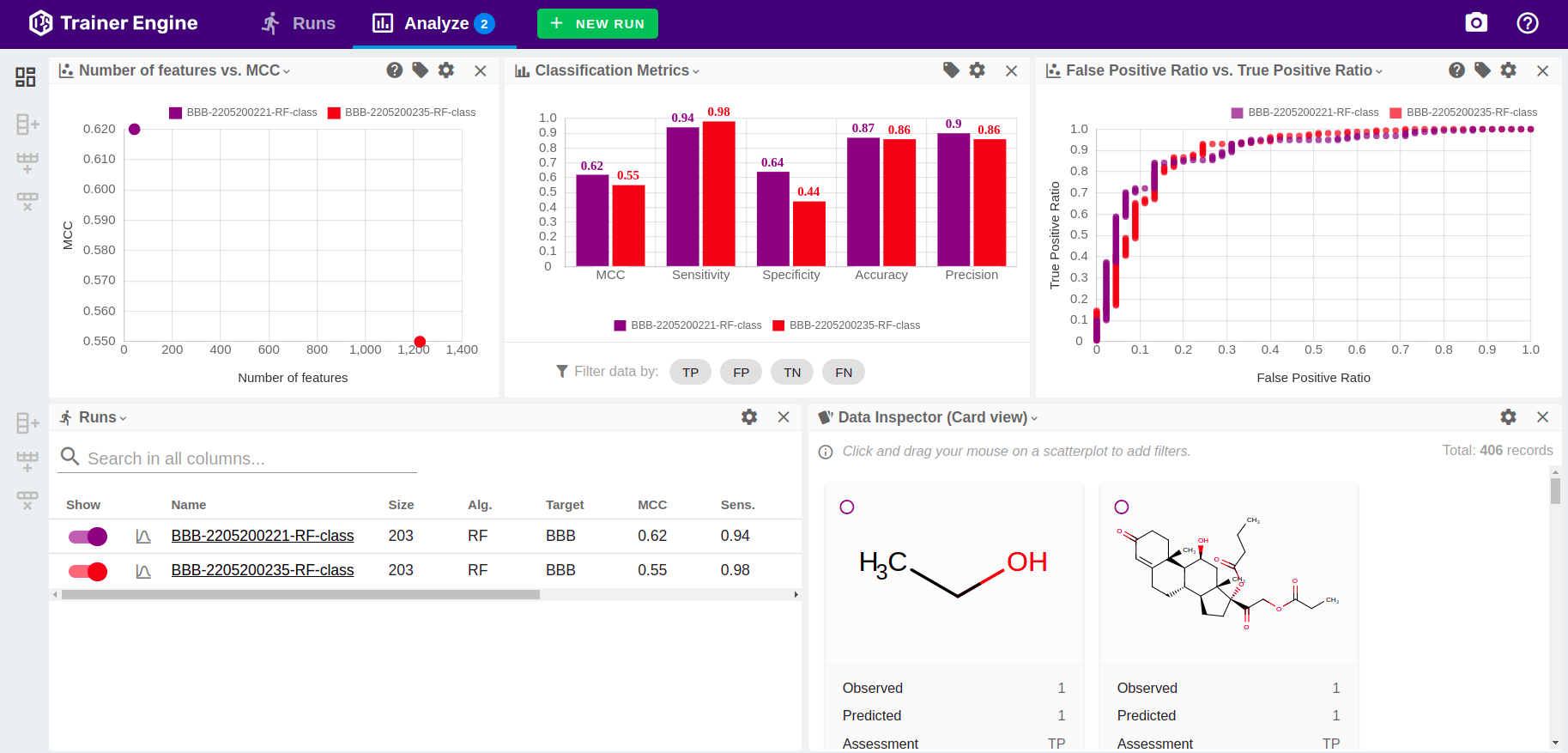
Analyze layout configuration
Analyze page is a flexible and configurable view to support visualization, comparison and assessment of model details and accuracy measures.
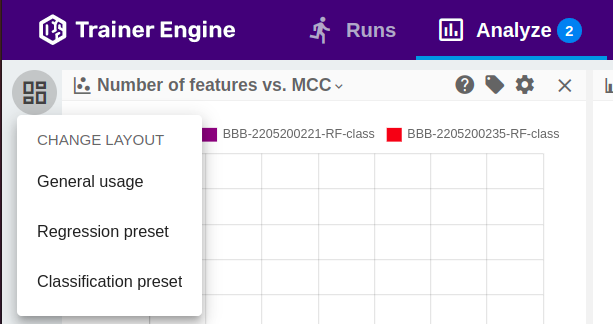
- General, Regression and Classification pre-sets are available.
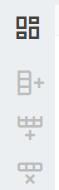
- Under the presets, columns and rows can be added or deleted.
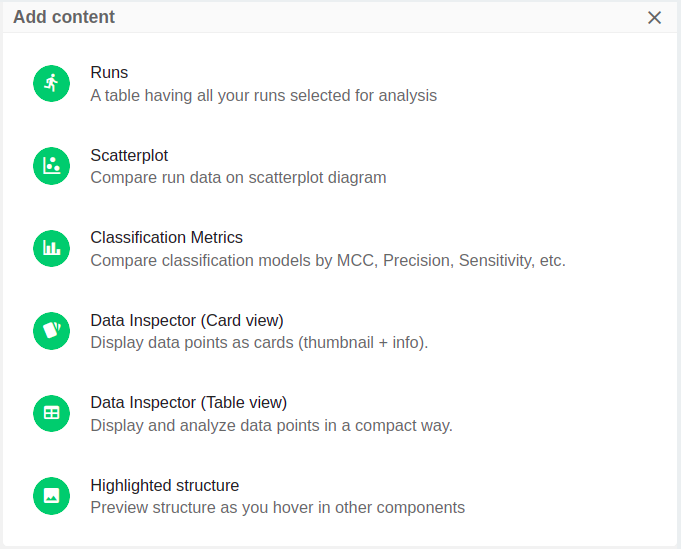
- Six different content types are available.
Controlling scatter plots
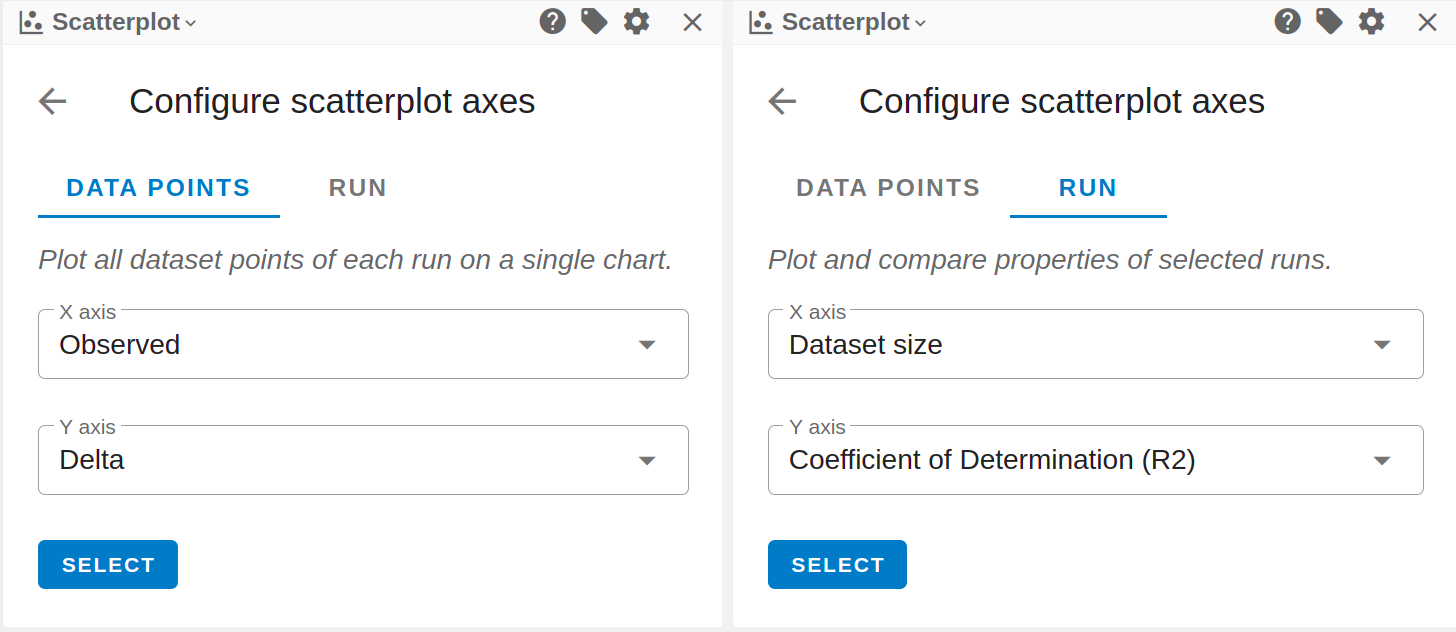
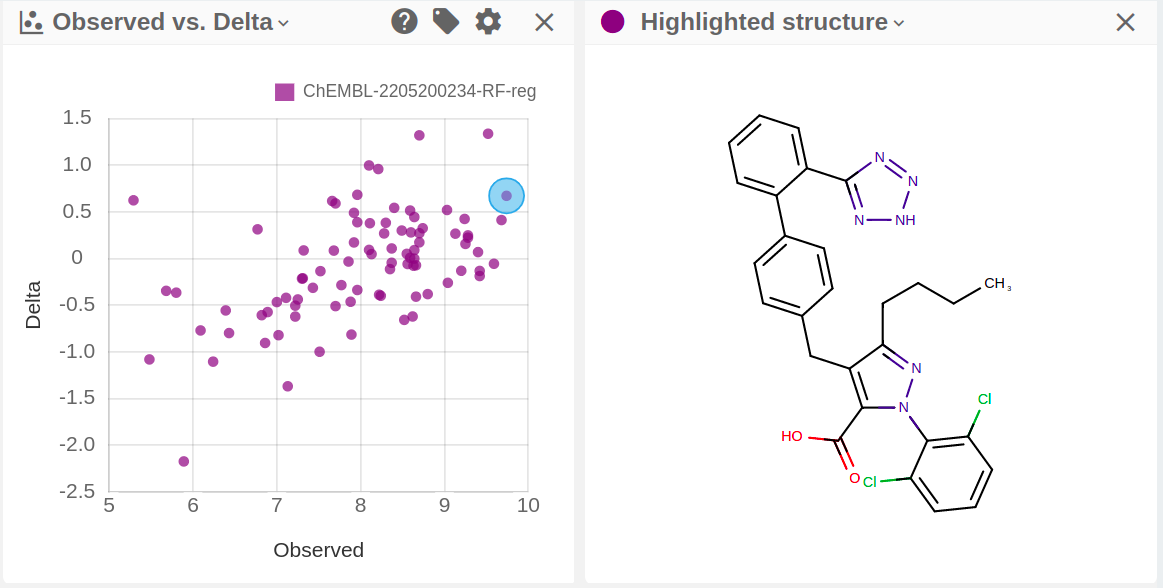
- Both data points or run level data can be configured as axes. Data points are the individual molecules, run level data is associated with the run (e.g. hyper parameters, dateset size, accuracy statistics)
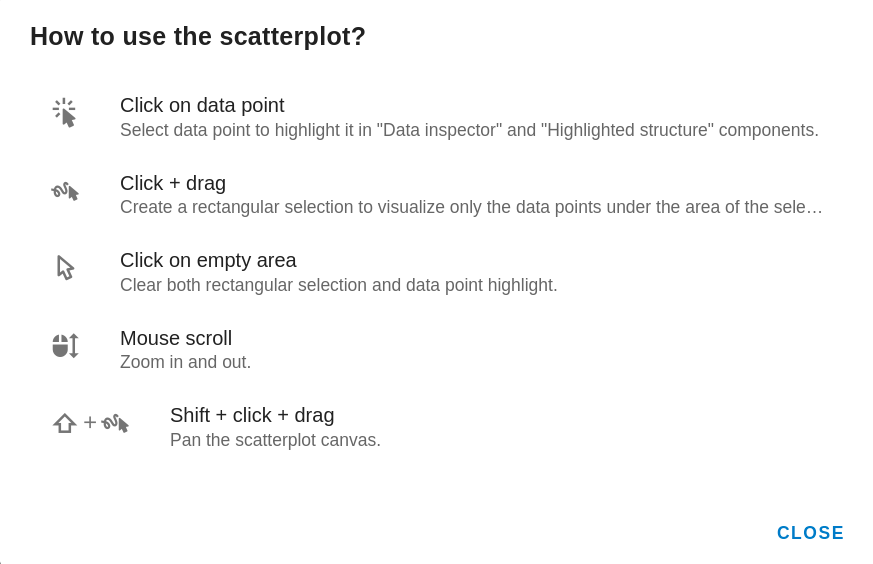
- Zoom, pan and selection are available on scatterplots.
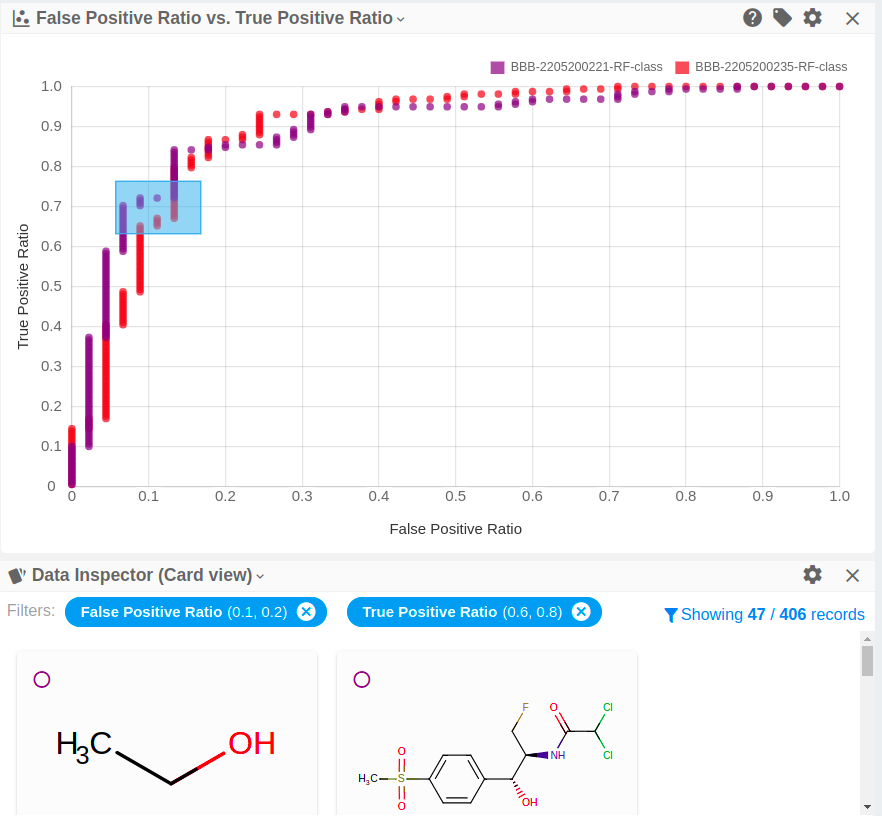
- Selection on the scatter plots activates filtering.
- Clicking on a symbol on a data point level scatter plot activates the Highlighted structure display.
Trainer Engine REST API
Trainer REST SWAGGER documentation is available at /swagger/swagger.html
Training workflow
1) Uploading sdf files:
SDF files are to sent using multipart post request.
These resources can be used to train model or run prediction.
The response contains information on the uploaded file:
To start training or test prediction, the raw input id is required.
2) Train new model
To train new model an uploaded input file (raw input id, observed data field), descriptor and trainer configuration are required.
Request body for classification with error prediction:
The response is the run id. The details of how to configure the "descriptors" and "trainer" parameters are available here.
3) Checking runs
The runs end-point returns the main information about a run for example:
- run status
- descriptor and training configurations
- statistical parameters, if training was successful
- production flag
Response
4) Prediction
3 workflows are supported for prediction.
- Two-step prediction is available on all trained models with success state
- Recommended to run validation with predefined inputs
- Production models, synchronous prediction
- Recommended for third-party integration
- Production models, asynchronous file based prediction
- Recommended for third-party integration for batch calculation
4.1) Two step prediction
Steps:
- Upload input file (/rest/rawfiles, see above)
- Execute prediction (/rest/execute/prediction/)
Useful to validation runs, like testing the prediction accuracy with predefined test set.
Request body:
If observed data is provided, statistics are calculated automatically.
Predicted file:
Set production flag
Training models in success state can be flagged as in production. These models are available on dedicated end-points (/rest/execute/prediction/) .
4.2) Production models, synchronous prediction
Production models can be executed in one request. This method is recommended for predicting values for new molecules.
- Note: observed field is not available and statistical assessment is not calculated.
Request body:
The response contains the prediction, configurable applicability domain and conformal prediction results.
4.3) Production models, sdf file based asynchronous prediction
Multipart sdf file upload, runid is the trained model run id.
Status of the running job:
Predicted file:
Playground
Playground general documentation is available here: https://disco.chemaxon.com/calculators/playground/
Check Integration
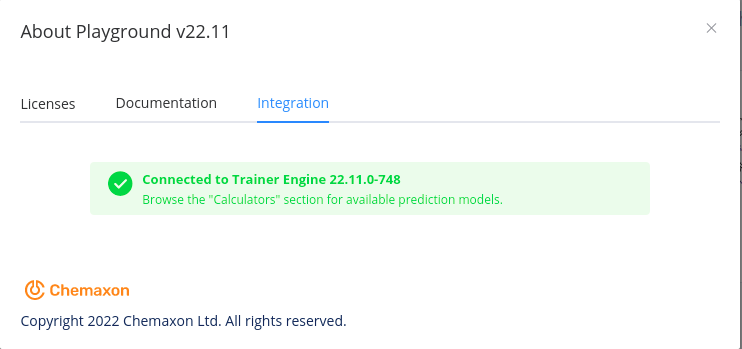
The Playground About dialogue Integration tab shows the state of the Trainer Engine connection.
Single prediction
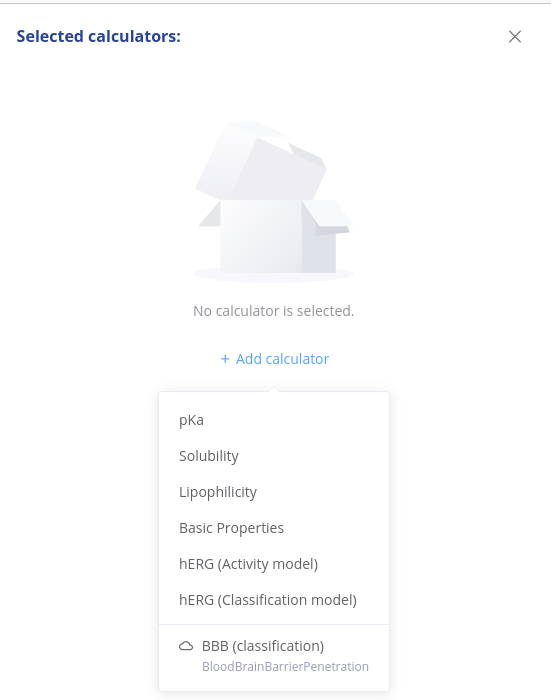
If the Trainer Engine is connected, production flagged models are listed in Playground Calculators marked with cloud icon.
Batch
Bulk prediction icon opens a dialogue to select a Trainer Engine model and upload the sdf file.

The results are available also under this icon.
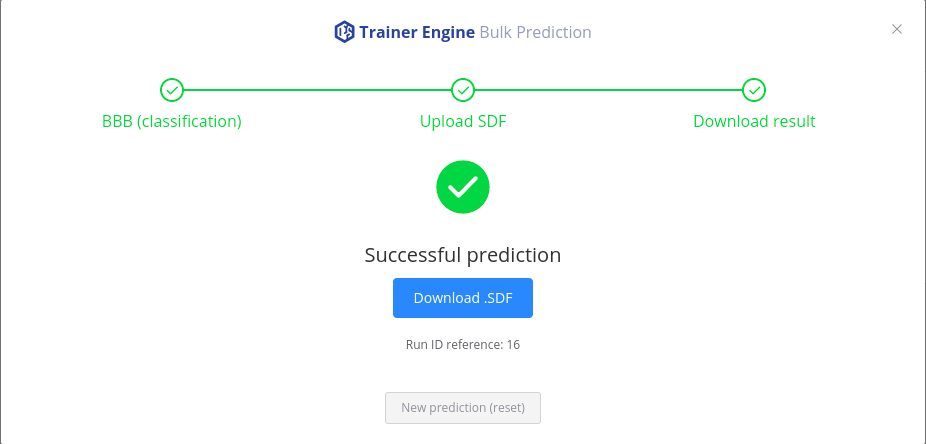
Bulk predictions started from Playground are marked as "external runs" and not listed in Trainer Engine GUI Runs tab.
The progress, status and corresponding log file is available with the run id: