License Server Configuration
License server configuration is only available from version 19.26.
This document describes how to use Chemaxon's Central License Server (instead of a local license file).
Get license key
You can find your personal license key in the following link (after logging in with the Chemaxon account):
https://accounts.chemaxon.com/licenses
(Only available if you have an active license on the license server.)
Install with GUI (recommended)
You can use Chemaxon License Manager GUI. It is a simple application where you can manage the licenses of all Chemaxon products.
-
Start the License Manager:
- Choose "Licenses..." from the Help menu of any Chemaxon desktop application.
- Or find the License Manager among your installed applications (e.g., on Windows: Start menu → Programs → Chemaxon).
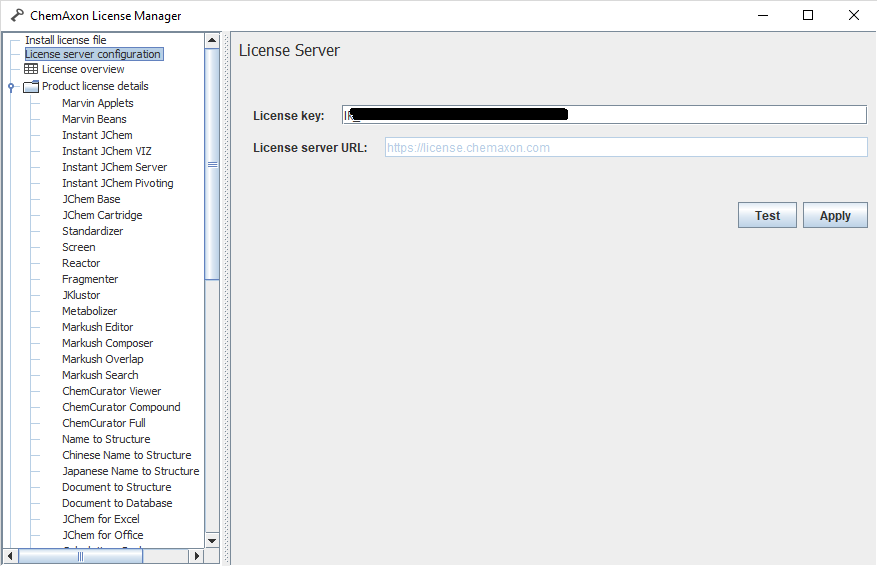
- Under ** License server configuration** , you can set your personal license key. You can optionally test the configuration here.
- Click on **Apply ** to start using the central license server.
After successful configuration, available licenses are automatically checked on the license server when you start an application that requires a license. For this check, an active internet connection is required. After a successful license check, the specific application can be used for 30 days offline. (If you have troubles with the license check process, check your proxy settings and ensure that https://license.chemaxon.com can be accessed.)
Using system variables
License key and license server URL can be set with the following environment * variables* (help on setting environment variables):
CHEMAXON_LICENSE_SERVER_KEY
CHEMAXON_LICENSE_SERVER_URL (optional if not the default license server is used)
1 2 | |