Setting up the JChem Cartridge for Oracle and its use with Instant JChem
Introduction
The performance of Instant JChem searches can be significantly improved by using the JChem cartridge for Oracle, as the computational requirements are load-balanced from the client side to the server. In this document, we will guide you through the process of installation and setup of JChem cartridge for Oracle (JCC), for the use with Instant JChem (IJC)/Plexus Connect.
The recommended layout of the database is shown in the figure below [fig. 1]. Three database schemas are recommended. The first one is the data warehouse (DWH) which contains all the structural and analytical data (you can use existing data in your Oracle database), indexes and tables containing JChem data. The data in the DWH can be accessed through the *IJC ** DB schema which itself contains IJC metadata only. The JChem cartridge for Oracle is installed in the *JCHEM ** schema and is used by the data warehouse for data processing (all the stored procedures needed for JCC operation are there).
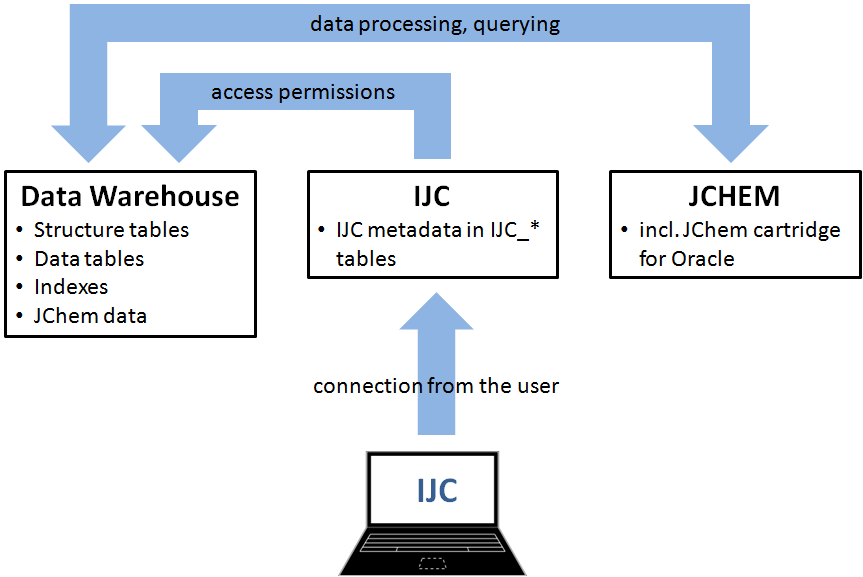
[1]
Installation of JChem Cartridge for Oracle (JCC)
We will assume that your environment is set up according to the JCC software requirements:
- Oracle database 11gR2 and 12c (Express Edition is not supported)
Oracle 11gR1 users have to apply the fix for Oracle bug 7713193. For Windows 32-bit, the fix is currently available in patch 8260294. A single patch is also available for Linux x86_64. These patches require Oracle Server to be already at patch-level 11.1.0.7.0.
One JChem server and one JChem cartridge for Oracle instance is usually sufficient for most use cases. If more than one cartridge instance is needed, please follow the instructions f or installation with Oracle Real Application Cluster.
Pre-installation tasks (a more detailed version can be found here)
1.
Make sure that your Oracle database is JVM-enabled and properly configured to use Java Stored Procedures. A database created with default settings typically meets this requirement. (If in doubt, refer to the chapter Java Installation and Configuration of your Oracle version's Java Developer's Guide.)
1.
Set the environment variable JAVA_HOME to the home directory of a Oracle Java Development Kit version 1.6 or newer.
1 2 3 | |
1.
Download the JChem Cartridge installation package and unpack into a permanent location (such as /opt/chemaxon/jchem-cartridge on Unix/Linux or C:\Chemaxon\JChem-Cartridge on Windows), because its files will not be used exclusively during the installation process of JChem Cartridge, but they will also back the operation of the JChem Cartridge server (associated with the JChem Cartridge instance to be installed). The location of the uncompressed package will be the location of the JChem Server. This can be the same server computer where the database resides or a separate hardware.
1.
(Advanced use) Have your DBA set up schema and role. For Data Vault users and for organizations where the roles of the DBA and the application administrator are strictly separated (if this is your case, please follow the steps in the JCC documentation)
1.
Collect information to be prepared to answer the questions that will be asked during the next installation process You will be asked for the
1 2 3 4 5 6 7 8 9 10 11 12 13 14 15 16 17 18 19 20 21 22 23 24 25 | |
Installation (a detailed version can be found here)
The following steps have to be performed on the host where the JChem Cartridge server will be running:
1.
Start the command interpreter available on your platform and navigate to the **cartridge ** directory.
1 2 3 4 5 | |
1.
Start the installer Start the *install.sh ** shell script or *install.bat ** batch file.
1.
Provide the input requested by the script
1.
If you answer a prompt for a property with a question mark (?), a more detailed description of the property will be displayed.
1.
The connection to the database can be given multiple ways.
1 2 3 4 5 6 7 8 | |
1.
Set the maximum memory allocated to the JChem server instance, 700m is the default value.
1.
Set the structure cache id of this JChem server instance - JCC1 is the default value. If more than one JChem server instances are to be used, please refer to the installation guide using Oracle RAC.
1.
When prompted for the DBA login, enter an exclamation mark (!), if you don't want the installer program to use DBA account. See this pre-installation task for steps required before installation in such cases. Installation using non-DBA account is not recommended, please, apply it only in compulsory cases.
1.
Decide whether you want a role for the basic JChem Cartridge user privileges to be created. As default, the JCC_BASIC_ROLE with all the necessary privileges is created. If you select “no” you have to define this role manually.
1.
Define the name for the role with the basic JChem Cartridge user privileges, the default name is JCC_BASIC_ROLE.
1.
We recommend to use public synonyms. If they are not created during installation, they have to be granted durin JChem user configuration
1.
After all required input has been provided, you will be asked to confirm them and only after your confirmation will the database and configuration files be changed.
1 2 3 4 5 | |
Post-installation tasks
1.
(Linux/Unix users) Create system service control script
1.
The installer (optionally) creates a Windows service on Windows. Linux/Unix users may want to create a system service for JChem Server after the installation program completes successfully.
1.
After the installation of JChem Cartridge is completed, the license file(s) should be copied into a dedicated directory
1 2 3 4 5 6 7 8 9 | |
1.
After the installation program start JChem Server
1 | |
1.
Make the cartridge directory your current working directory
1.
call the server script (server.sh on Unix/Linux server.bat on Windows) with the start or stop parameter:
1 2 3 4 5 6 7 8 9 10 11 12 13 14 15 16 17 | |
Creating index on an existing table
To be able to use JChem cartridge for Oracle functionalities on tables already existing in the database, creating an cartridge index on a column containing molecular structures in one of the supported representations is necessary. More details on the jc_idxtype can be found in the online documentation. Creation of cartridge index is possible on both standard and JChem tables.
Only database user with the JCC_BASIC_ROLE is able to create JCC indexes (jchem by default).
Before index creation you need to run the following command:
The index can be created using the following general statement:
The index name cannot be longer than 22 characters.
Make sure you create your index using the data warehouse schema owner, so the related tables are created in the data warehouse database schema.
When creating index on JChem tables, please keep in mind that both JChem and JCC has to be the same version. More details on different table types available when using JChem Cartridge for Oracle can be found here.
There are multiple parameters available when creating an index. Detailed description of the parameters can be found in the documentation. The list can be found below.
Before using any of the options, please consult the JChem Cartridge documentation. If no options are selected, the default is applied.
The following option can be specified only for JChem tables:
- RegenerateTable: specify this option if you want to create index on a structure table generated by an earlier, incompatible version of JChem.
In addition to the preceding parameter the following can be used for indices on regular structure tables:
- idxSubType [ structures | fp ]
- fp_size
- fp_bit
- pat_length
- structureType
- structuralfp _config
- std_config
- std_conf:sql
- absoluteStereo [y|n]
- haltOnError [y|n|nf|nfp]
- duplicateFiltering [y|n]
- TDF [y|n]
- exclusiveDF [y|n]
- autoCalcCt=
;
- TABLESPACE=
- STORAGE=
- threadCnt=
- insSessCnt=1
- errorTableName
Here are some examples to create an index, more can be found in the JCC documentation
1.
Create index with default parameters:
1 | |
1.
Create index with default parameters on a JChem table for use with BLOB operators:
1 | |
1.
Create an index with structural keys stored in the stkey column of the stkeys table:
1 | |
1.
Create index with Daylight-style aromatization:
1 | |
1.
Specify that query and target structures must be treated as absolute stereo by default:
1 | |
1.
Create index so that JChem stores metainformation about the index in a table called jchemprops:
1 | |
1.
Create an index on a structure table generated by an earlier, incompatible version of JChem so that the table will be upgraded to the current JChem table version: CREATE INDEX jc_idx_2 ON jchemtest2(structure_col) INDEXTYPE IS jc_idxtype PARAMETERS('RegenerateTable=true');
Cartridge/database setup for the use with Instant JChem/Plexus Suite
At this point, we have installed the JChem Server including the JChem cartridge into an Oracle schema that owns these functions (e.g. a 'JCHEM' user). The following section will guide you through the process of setting up the access to the cartridge functions to the second user schema (data warehouse, e.g. 'IJC_IDXOWNER') which allows this user to administer the tables and indexes. Then tables/indexes owned by this user can be accessed by a further 'IJC' (which owns the IJC database schema) via another configured "read only" role (JCC_IDX_ROLE).
The privileges necessary for each of the remaining Oracle users are described in a separate topic below and the setup of tables is also discussed in this part of tips and tricks as well as in this document i n JChem Cartridge for Oracle documentation
Data warehouse access to JChem Cartridge for Oracle
In our example, the data will be stored in a database schema belonging to the IJC_IDXOWNER user, which will have access to the cartridge functions and thus effectively 'own' the index.
You will need the access rights as both DBA and JCHEM user to set up the IJC_IDXOWNER.
1.
Create an Oracle user 'IJC_IDXOWNER'.
1 2 3 | |
1.
Grant CONNECT, RESOURCE and JCC_BASIC_ROLE roles to this user in Oracle as DBA.
1 2 3 | |
1.
On JChem cartridge server, in cartridge directory run the config-util.sh (or .bat) script with the list-sqls-for-jcc-user-privs argument.
1 | |
1.
Answer the questions correctly, at the prompt. An example of the config-util.sh script being called, with the 'list-sqls-for-jcc-user-privs' option is below:
1 2 3 4 5 6 7 8 9 10 11 12 13 14 15 16 | |
1.
Perform the operations present in the script between the CUT HERE parts as the DBA and JChem users.
* as DBA:
1 | |
* as jchem:
1 | |
1.
The user 'IJC_IDXOWNER' is now able to create JCC indexes with cartridge owner prefix(jchem in example) before INDEXTYPE.
1 | |
Instant JChem access to data warehouse
IJC can access tables from Oracle schemas other than its own. To do this add the required schemas in the Database schemas property of the schema section of the schema editor. See the screenshot below and the details on using multiple database schemas can be found here. For this to work with JChem cartridge indexes the user must be granted extra privileges on the index. In our case, this user is called ‘IJC'.
1.
Create an Oracle user 'IJC'.
1 2 3 | |
1.
Grant CONNECT, RESOURCE and JCC_BASIC_ROLE roles to this user in Oracle as the DBA.
1 2 3 | |
1.
Grant SELECT on all tables present in the data warehouse. It is possible to grant to the IJC user privileges to select any table present in the database except for system tables:
1 2 3 4 5 6 7 8 9 10 11 12 13 14 15 16 17 18 19 20 21 22 23 | |
1.
Grant INSERT, UPDATE and DELETE privileges on the JCHEMPROPERTIES and JCHEMPROPERTIES_CR tables in the index owner's schema ('IJC_IDXOWNER') to the 'IJC' schema.
1 2 3 | |
1.
Grant SELECT, INSERT, UPDATE and DELETE privileges on the update logs (tablename_UL) and JCC index helper tables (tablename_JCX) tables in the index owner's schema ('IJC_IDXOWNER' which is the data warehouse) to the 'IJC' schema.
1 2 3 4 5 6 7 8 9 | |
1.
On JChem cartridge server run the config-util.sh (or .bat) script with the config-index-user argument
1 | |
1.
Answer the questions correctly, at the prompt. An example of using the config-util.sh script with the config-index-user option is given below. Please note the index name prompt expects a single index name. If you have multiple names you will need to repeat the final privman_pkg call for each index that you wish to use.
1 2 3 4 5 6 7 8 9 10 11 12 13 14 15 16 17 18 19 20 21 22 23 24 25 | |
1.
Perform the operations below as the DBA and JChem users
* SQLs to execute as jchem:
1 2 3 | |
* SQLs to execute as ijc_idxowner:
1 2 3 | |
1.
Grant SELECT privileges on the sequence used for generation of IDs in the structure table (optional, you can use the Null value generator if you are not wanting to insert new rows). This step is really only relevant for Standard tables + index which have a potentially unknown sequence name.
1 | |
Some notes on this:
1.
Your JChem user may not have privileges to grant the JCC_BASIC_ROLE. You may need to do this as a privileged user.
1.
You index owner may not see the privman_pkg package. You may need to qualify this with the schema name of the jchem owner. e.g. jchem.privman_pkg.
A detailed example is provided in the administrators tips section.
A final point about privileges is that due to the quirks or Oracle it is sometimes necessary to grant the privileges directly to the user rather than using a role. The times when this is necessary are not easy to predict, but if you are using the role based approach and having difficulties then try granting privileges directly to the user.
Accessing the database using Instant JChem
After opening Instant JChem, go to the projects window (Window > Projects). Using right click and selecting Create New IJC Schema… option (alternatively File > Create New IJC Schema…) you can open the wizard.
In the first step, select Oracle database. In the second step, fill in the credentials - use the database URL and ‘IJC’ user credentials as used previously through this guide. By pressing Finish you will create a new IJC schema and the IJC metadata tables are created in the IJC database schema. More details on creating a new IJC schema can be found in the online documentation.
Adding non-default schema in Instant JChem
We assume you have set up the database access as described in the previous parts of this guide and admin access to your IJC schema (no security template is applied).
Using double-click on the IJC schema node in the Projects window, alternatively right-click and selecting the Edit Schema option, you can open the schema editor. By selecting the Schema > Database schemas in the schema editor window, you can see all the database schemas in your Oracle database your Instant JChem user has access to. Select your data warehouse schema and add it to the selected schemas using the buttons in the middle of the screen. After applying the changes, you have to disconnect from the IJC schema and reconnect it so IJC schema can pick up all the changes. More information on working with multiple database schemas can be found in the online documentation.
Promoting existing database tables
Selecting the Database Tables tab in the schema editor will expand the window to display all the database tables available in the database schemas available for the database user which is used to connect IJC. You can notice the database table names are identified by the database schema name. Using the right-click on the table name and the Promote to Entity option you can open the promotion wizard. In the first step, you can review the entity settings while in the second step you can select the database columns to be included in the entity. In the case of JChem structure tables, there is no need to select additional database columns. In the case of data tables, select the columns as appropriate. More details on promoting existing database tables and using them is available online.