Command-Line Mode
Contents
Command-Line Mode
To perform repetitive or time consuming tasks like document annotation you can use the command-line options of ChemCurator. If you want to run the application in a headless environment you are able to fully disable the GUI components and in this way you can run ChemCurator on your server in batch processing mode. Command line options are also callable from most common workflow tools like KNIME, Pipeline Pilot, etc this way you are able to integrate ChemCurator in your workflows. For annotating documents from command-line mode you need a separate D2S license beside of ChemCurator license.
Command-Line Executable
The default location for the executable file for launching from command-line can be found:
| Operating System | Location |
|---|---|
| Windows | C:\Program Files\Chemaxon\ChemCurator\bin\chemcurator64.exe |
| Linux | /opt/chemaxon/chemcurator/bin/chemcurator |
| macOS | /Applications/Chemaxon ChemCurator.app/Contents/Resources/app/bin/chemcurator |
Command-Line Options
| Options | Description |
|---|---|
| --createProject |
Annotates the specified local file and creates a new ChemCurator project. |
| --shareProject |
Uploads the specified local project to the Integration Server. |
| --openProject |
Opens the specified shared project or downloads it from the Integration Server ( if a local copy is not found). The projects downloaded this way are always saved to the folder ~/ChemCurator on Linux/Unix systems and to the folder <USERHOME>\Documents\ChemCurator on Windows. |
| -J-Djava.awt.headless=true | Disable all GUI messages for command-line usage. (Cannot be used together with --openProject.) |
Note:
Integration Server Setup
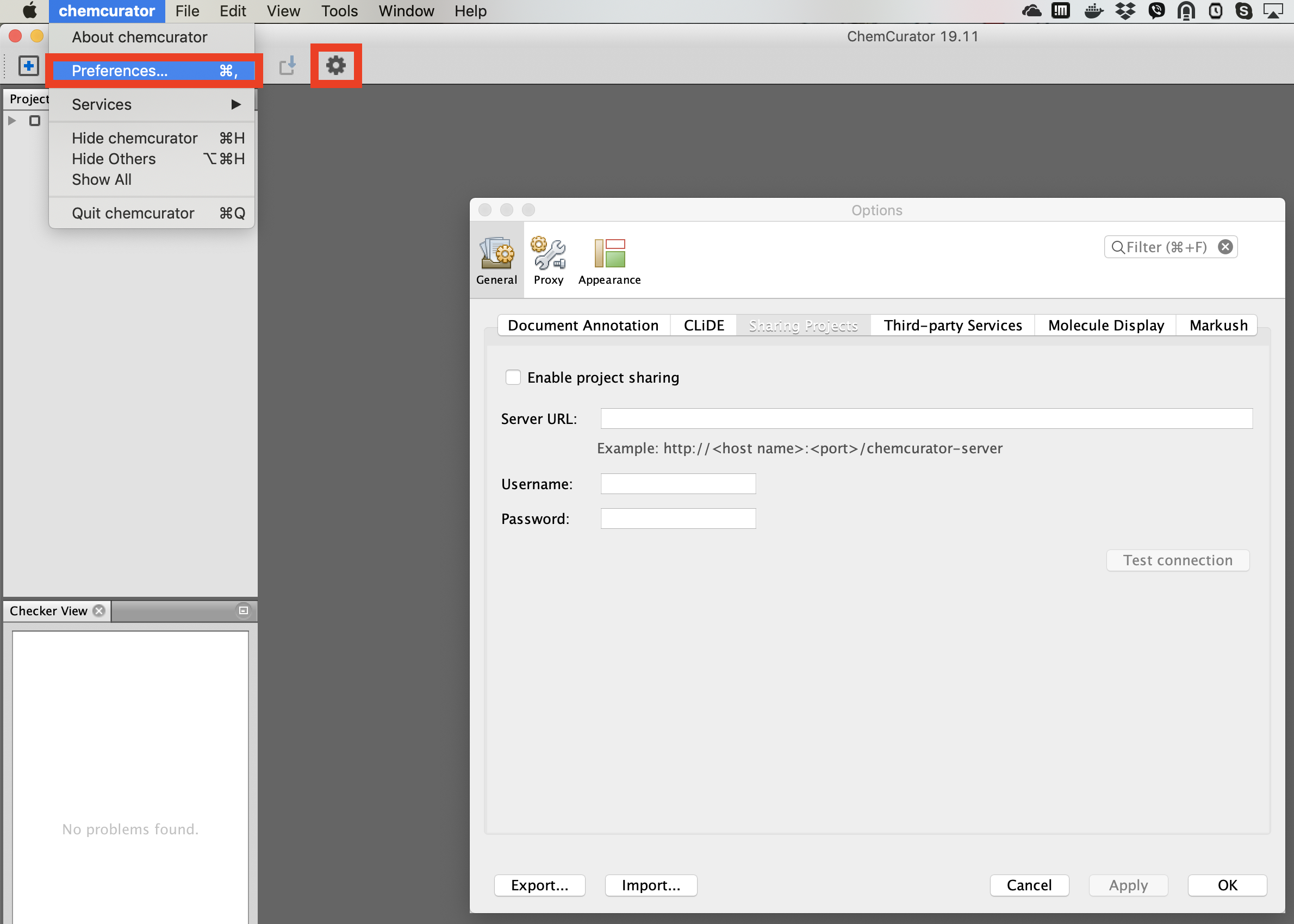
Currently, the integration server location must be set within the graphical user interface of ChemCurator. Start the interactive mode (start the user interface).
- Navigate to ** Tools / Options...** then Sharing Projects ** (on Mac machines: **chemcurator / Preferences... ). Alternatively, you can click on the Gear icon (highlighted in the picture below).
- Enable project sharing checkbox must be checked.
- Fill the Server URL with the URL of the integration server. This URL must be reachable from the machine you are using currently.
- Specify the Username and Password
- You can optionally test the connection by clicking on the Test connection button.
- Click OK.
Examples
Simple command line annotation and upload
"C:\Program Files\Chemaxon\ChemCurator\bin\chemcurator64.exe" --createProject C:\Users\user\Documents\comp.pdf C:\Users\user\Documents\comp -J-Djava.awt.headless=true
"C:\Program Files\Chemaxon\ChemCurator\bin\chemcurator64.exe" --shareProject C:\Users\user\Documents\comp -J-Djava.awt.headless=true
KNIME Integration
The following KNIME example workflow illustrates how you can recursively find and annotate all pdf documents in a selected folder (and sub-folders) and create ChemCurator project in a target folder via the createProject command line function of ChemCurator.

You can download the example project from here.
The following KNIME example workflow illustrates how you can annotate a selected document via the createProject ** and upload the created project to the ChemCurator integration server by the ** **shareProject ** command line functions of ChemCurator .
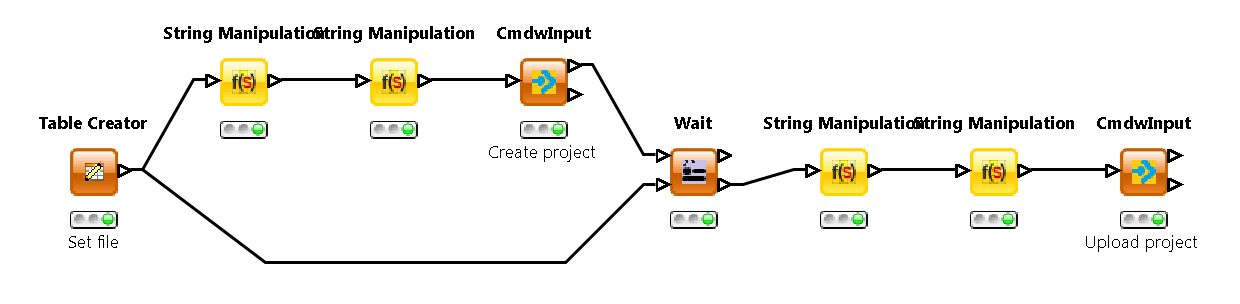
You can download the example project from here.