Manually Enabling JChemExcel Functions
After installing, the JChem for Excel ** Add-in** it will be loaded automatically when starting Microsoft Excel. If any error occurs during installation, in rare cases, JChem for Excel Add-ins are not loaded automatically and have to be enabled manually.
-
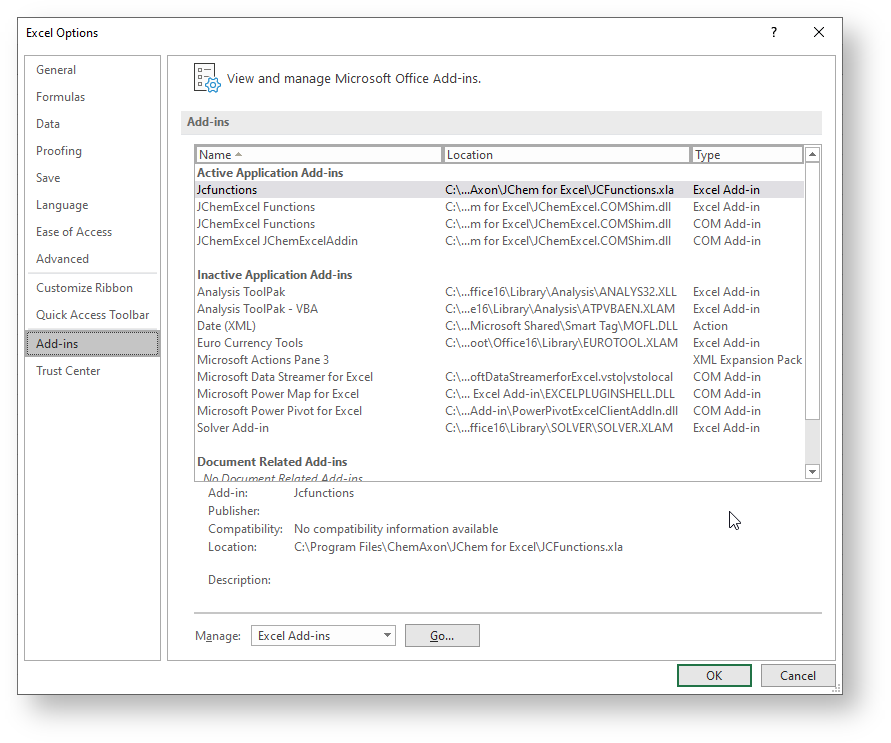
Open Excel and click File > Options.
-
Navigate to the Add-ins tab.
-
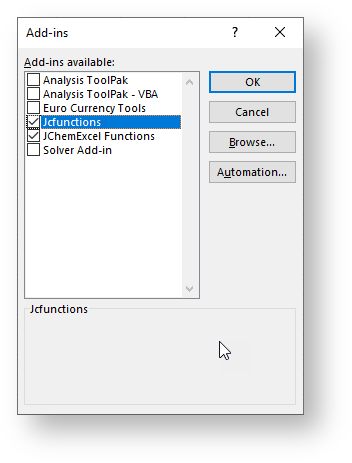
Chose Excel Add-ins from the Manage drop-down list and click Go.
-
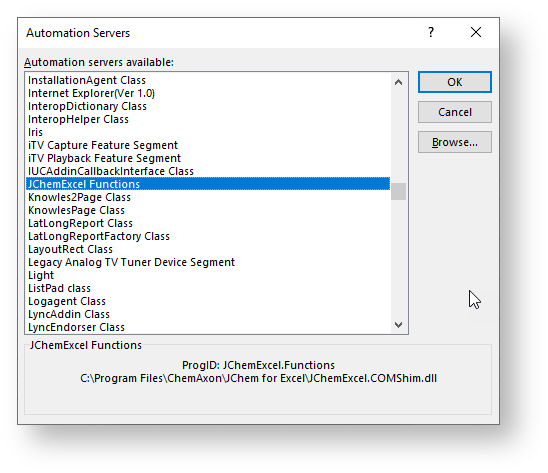
To load an automation add-in, click Automation.
-
Select JChemExcel Functions from the Automation Servers dialog, then click OK.
To unload an automation add-in, you must remove it from the registry. Contact your system administrator for details.
From Known Issues
In Case a Function does not Work in JChem for Excel
For the proper behavior of JChem for Excel and its functions, you should have the following add-ins active (after using the first JChem action, for example, Options ):
-
COM Add-ins :
- CXNSharedAddin
- JChemExcel JChemExcelAddin
Activate the CXNSharedAddin as a COM Add-in
-
Open Excel and click File > Options.
-
Navigate to the Add-ins tab.
-
Chose COM Add-ins from the Manage drop-down list and click Go.
Activate the JChemExcel Functions as an Excel Add-in
-
Open Excel and click File > Options.
-
Navigate to the Add-ins tab.
-
Chose Excel Add-ins from the Manage drop-down list and click Go.
-
Tick the checkbox next to JChemExcel Functions , and click OK.
{info}
If the JChemExcel Functions item does not exist in the list, then click Automation, ** select **JChemExcel Functions from the list, and click OK.
Activate the Jcfunctions as an Excel Add-in
-
Open Excel and click File > Options.
-
Navigate to the Add-ins tab.
-
Chose Excel Add-ins from the Manage drop-down list and click Go.
-
Tick the checkbox next to Jcfunctions , and click OK.
{info}
If the Jcfunctions item does not exist in the list, then click Browse , navigate to theJCFunctions.xlafile, select it and click OK.The file can be found in one of the following locations:
-
1**32-bit:** `C:\Program Files (x86)\ChemAxon\JChem for Excel\JCFunctions.xla`
-
1**64-bit:** `C:\Program Files\ChemAxon\JChem for Excel\JCFunctions.xla`
-
-
Restart Excel.