Installing
Interactive Installers for Different Platforms
Starting the Interactive Installer
How to install CC as a service
How to configure CC
How to Upgrade CC
How to start CC
How to restart CC
How to use the installed application
Updating the ComplianceChecker Knowledge Base
Interactive Installers for Different Platforms
Windows
- exe installer: interactive installer that lets you choose the installation directory and which parts of Compliance Checker do you want to install
- zip installer: you can unpack Compliance Checker and use it with installed 64 bit Java
Unix/Linux
- sh installer: interactive installer that can be run with/without GUI
- deb installer: default installer for Debian like systems
- rpm installer: default installer for RedHat like system
- tar.gz installer: you can unpack Compliance Checker and use it with installed Java
Mac OS
- dmg installer: interactive installer
Starting the Interactive Installer
The interactive installer will guide you through the following steps:
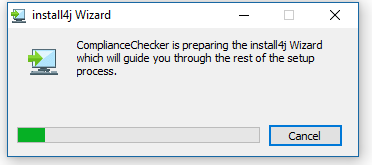
It unpacks the installer and its parts:
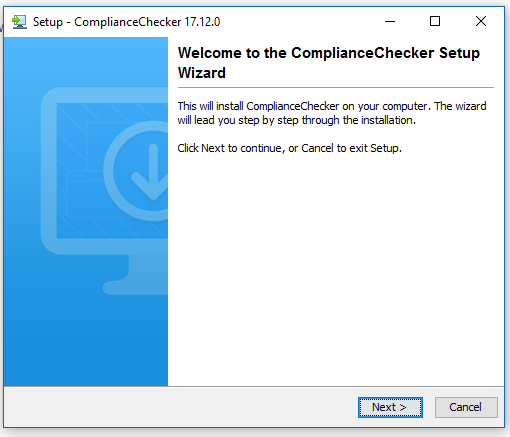
Short description of installation:
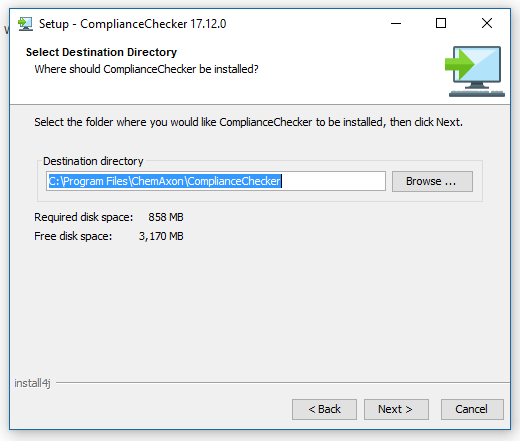
choose installation folder
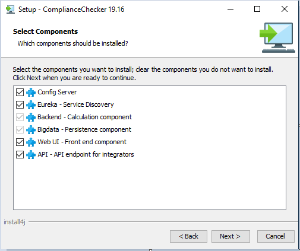
choose which components to install (you need all if you only install CC to a single server)
edit Name in the Start menu (Windows only)
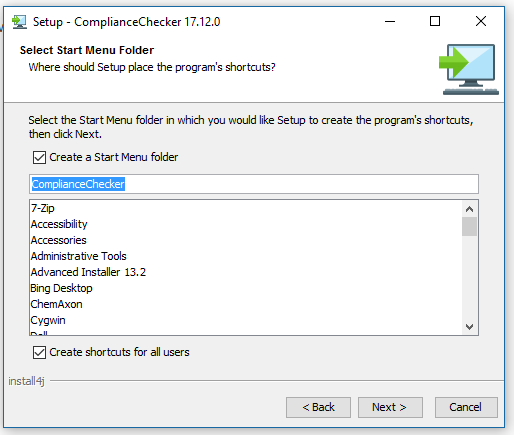
installs the files:
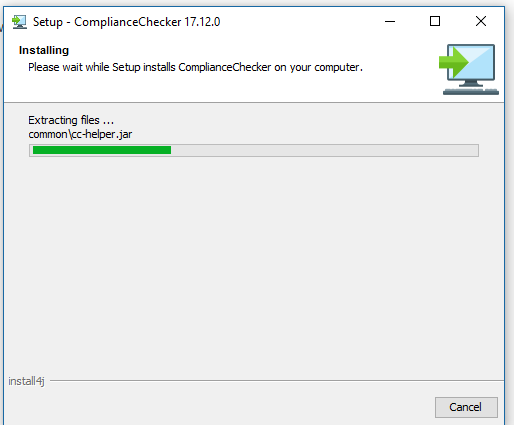
when the install is completed:
New folders created in the installation directory
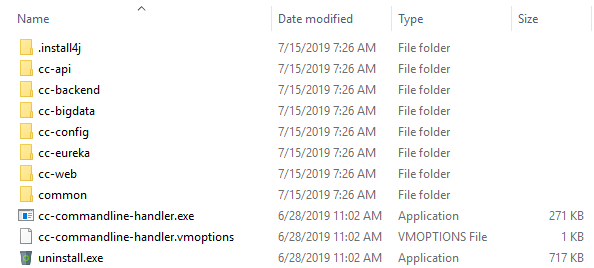
.install4j (folder)
This contains all installation details! PLEASE DO NOT DELETE IT.
cc-backend (folder)
- cc-backend.war
This war file is the backend application.
- cc-backend.(exe/sh)
This is the service starter of cc-backend.
- cc-backend.vmoptions
You can set any JVM options for cc-backend service.
- run-cc-backend.(exe/sh)
This little starter runs cc-backend as a foreground application.
- run-cc-backend.vmoptions
You can set any JVM options to run-cc-backend executable.
- application.properties
You can set any application properties specific to this service only (like server port, etc).
- bootstrap.properties
Settings that are needed to be set before application start.
cc-bigdata (folder)
- cc-bigdata.war
This war file is the bigdata application.
- cc-bigdata.(exe/sh)
This is the service starter of cc-bigdata.
- cc-backend.vmoptions
You can set any JVM options for cc-bigdata service.
- run-cc-bigdata.(exe/sh)
This little starter runs cc-bigdata as a foreground application.
- run-cc-bigdata.vmoptions
You can set any JVM options to run-cc-bigdata executable.
- application.properties
You can set any application properties specific to this service only (like server port, etc).
- bootstrap.properties
Settings that are needed to be set before application start.
cc-api (folder)
- cc-api.war
This war file is the api application.
- cc-api.(exe/sh)
This is the service starter of cc-api.
- cc-api.vmoptions
You can set any JVM options for cc-api service.
- run-cc-api.(exe/sh)
This little starter runs cc-api as a foreground application.
- run-cc-api.vmoptions
You can set any JVM options to run-cc-api executable.
- application.properties
You can set any application properties specific to this service only (like server port, etc).
- bootstrap.properties
Settings that are needed to be set before application start.
cc-web (folder)
- cc-web.war
This war file is the web application.
- cc-web.(exe/sh)
This is the service starter of cc-web.
- cc-web.vmoptions
You can set any JVM options for cc-web service.
- run-cc-web.(exe/sh)
This little starter runs cc-web as a foreground application.
- run-cc-web.vmoptions
You can set any JVM options to run-cc-web executable.
- application.properties
You can set any application properties specific to this service only (like server port, etc).
- bootstrap.properties
Settings that are needed to be set before application start.
cc-eureka (folder)
- cc-eureka.jar
This jar file is the eureka application.
- cc-eureka.(exe/sh)
This is the service starter of cc-eureka.
- cc-eureka.vmoptions
You can set any JVM options for cc-eureka service.
- run-cc-eureka.(exe/sh)
This little starter runs cc-eureka as a foreground application.
- run-cc-eureka.vmoptions
You can set any JVM options to run-cc-eureka executable.
- application.properties
You can set any application properties specific to this service only (like server port, etc).
- bootstrap.properties
Settings that are needed to be set before application start.
cc-config (folder)
- config (folder)
application.properties
- This file
(cc-config/config/application.properties)includes ALL settings that are propagated to every instance of compliance checker. - cc-config.jar
This jar file is the config application.
- cc-config.(exe/sh)
This is the service starter of cc-config.
- cc-config.vmoptions
You can set any JVM options for cc-config service.
- run-cc-config.(exe/sh)
This little starter runs cc-config as a foreground application.
- run-cc-config.vmoptions
You can set any JVM options to run-cc-config executable.
- application.properties
You can set any application properties specific to this service only (like server port, etc).
- bootstrap.properties
Settings that are needed to be set before application start.
common (folder)
- This contains a little helper application
- cc-commandline-handler.(exe/sh)
This program is a little helper application.
- cc-commandline-handler.vmoptions
This file contains any JVM options for cc-commandline-handler application.
- uninstall.(exe/sh)
This is the uninstaller of Compliance Checker.
How to install CC as a service
Run command
- cc-commandline-handler install
Windows
After install you can set
- autostart
- running user
- recovery actions
in Windows Services.
Unix/Linux
In /etc/systemd/system edit the corresponding .service file to set
- autostart
- running user
- recovery actions
How to configure
- Set your configuration options in the cc-config/config/application.properties file.
How to Upgrade
Installed with the Interactive Installer
Upgrading an instance - installed with the Interactive Installer - is smooth:
- The New interactive installer does NOT overwrite your previous [cc-config/config/application.properties] file.
How to start CC
The easiest way is to run cc-commandline-handler that has the following options:
- help
*Prints important information about the * cc-commandline-handler.
- run
Runs all cc services as foreground applications. (This is the default.)
- start
Starts all cc services as background applications.
- status
Prints status information about all cc services that were started.
- stop
Stops all cc services that were started.
- install
Installs all cc services as system services.
- uninstall
Uninstalls previously installed cc system services.
How to restart
Run
- cc-commandline-handler stop
- cc-commandline-handler start
How to use the installed application
When the application is running it can be used on
localhost:8080/cc-web/
When the application is running documentation for the integration endpoints (Swagger UI) can be accessed here:
localhost:8066/cc-api/
System status can be monitored on
localhost:8761/
Updating the ComplianceChecker Knowledge Base
The admin should update the CC Knowledge Base to the latest version:
- By clicking the Administration button and - on the Update the regulations page - clicking the Download and update to latest version button. (Automatic DB update)