Using license key
This document describes how to set up license key for your Chemaxon software. Licensing via Chemaxon license key means Chemaxon license server decides which features are allowed based on the licenses bound to that key. After successful configuration, available licenses are automatically checked on the license server, when you start an application that requires a license.
For this to work, an active internet connection is required. After a successful license check, the specific application can be used for 15 days offline.
Your machine should be allowed to communicate Chemaxon license server via internet. If this communication is not allowed e.g. by firewall, you - or probably someone from your IT department - should set up a proxy for https://license.chemaxon.com, see manual here.
Get license key
If you purchased Chemaxon software, an email is sent to you with
- Chemaxon license key
- Instructions about how to get your Chemaxon license key
- (Chemaxon license file attached, see this section)
After a login, you can find the license key bound to that account in https://accounts.chemaxon.com/licenses
This is only available if you have an active license on the license server, bound to that specific account. If you are not the contact person with Chemaxon License Operations, the license key is not bound to your Chemaxon profile. In this case, ask for the key from that contact person! The same key can be used by multiple users, by multiple machines, based on the agreement in the contract/PO.
Your license key must be protected. In case it is compromised, a new key should be requested from Chemaxon.
Setup license key
Here, we discuss the setup of the license key for one machine (desktop, server, container). If Chemaxon software is used in multiple machines, the same process should be done one-by-one. If the number of machines are really high, please ask support from your IT team.
Using properties file
License key and license server URL can also be set by editing the file
Using system variables
License key and license server URL can be set with the following environment * variables* (help on setting environment variables):
CHEMAXON_LICENSE_SERVER_KEY=<your_license_key>CHEMAXON_LICENSE_SERVER_URL=https://license.chemaxon.com(optional, only set it if not the default license server is being used)
Using JVM parameters
License key and license server URL can be set with the following JVM parameters:
chemaxon.license.server.keychemaxon.license.server.url(optional, if not set, the default license server url is used)
Using License Manager GUI
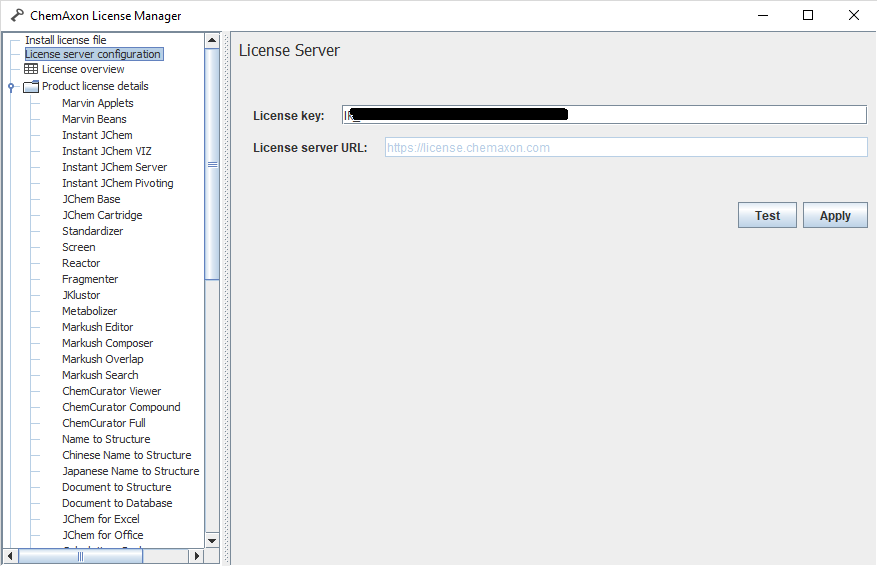
You can use Chemaxon License Manager GUI. It is a simple application installed along with many desktop Chemaxon applications like Marvin Sketch or JChem Base. With that, you can manage the licenses of all Chemaxon products.
-
Start the License Manager:
- Choose "Licenses..." from the Help menu of any Chemaxon desktop application.
- Or find the License Manager among your installed applications (e.g., on Windows: Start menu → Programs → Chemaxon).
- Under ** License server configuration** , you can set your personal license key. You can also test the configuration here.
- Click on **Apply ** to start using the central license server.
Please note that when you install your licenses with a license key through a license server, no license file (license.cxl) is generated through the installation process, the installation of these two license types is independent from each other.
In case you need help
In case you need help with license key, please contact us on https://chemaxon.freshdesk.com/.